Establish Your Account
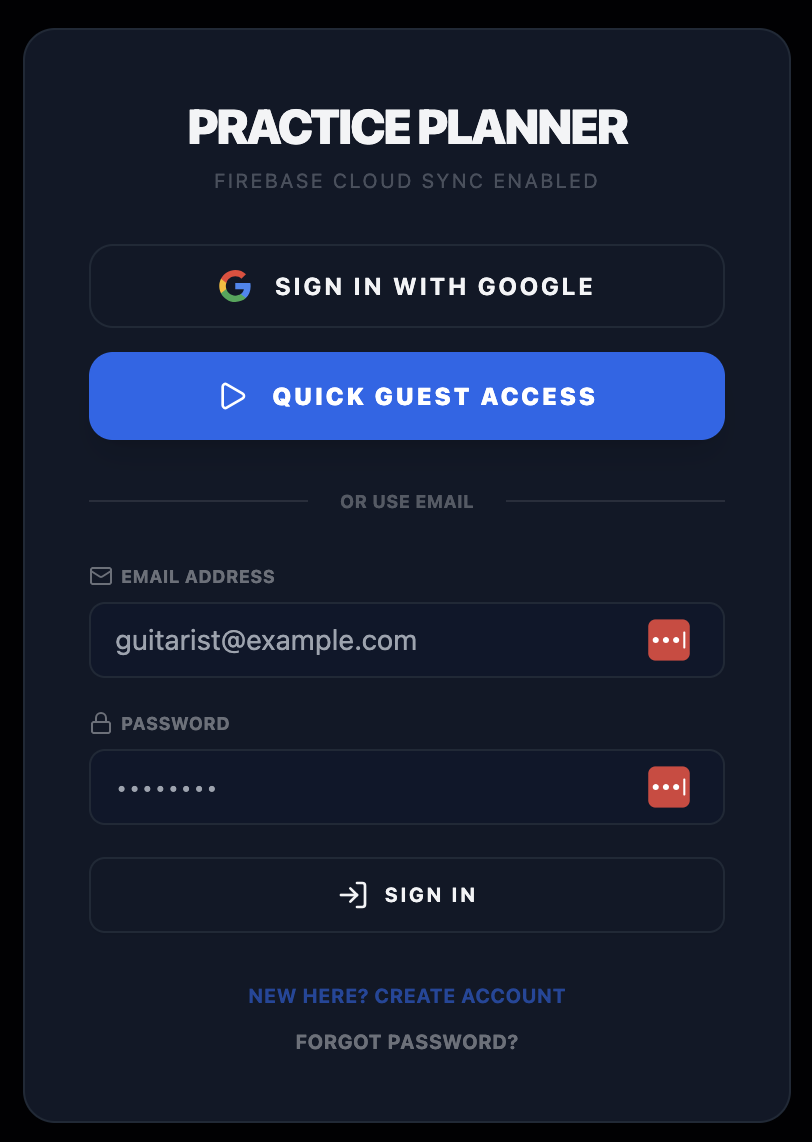
When you first visit the app, you'll see the authentication screen. You have two choices:
- Google Sign-In: The fastest way to get started. Click the Google button and sign in with your existing Google account. Your data syncs instantly across your phone, tablet, and laptop.
- Email & Password: Click "New here?" to register with any email address. You'll be able to sign in on any device with your email and password. Use the "Forgot password?" link if you need to reset it.
Bach/Cello_Suite_1.pdf) to create a virtual folder structure.
Build Your Repertoire
Everything starts with your pieces. You can add them one by one or import an existing list.
Adding a Piece manually
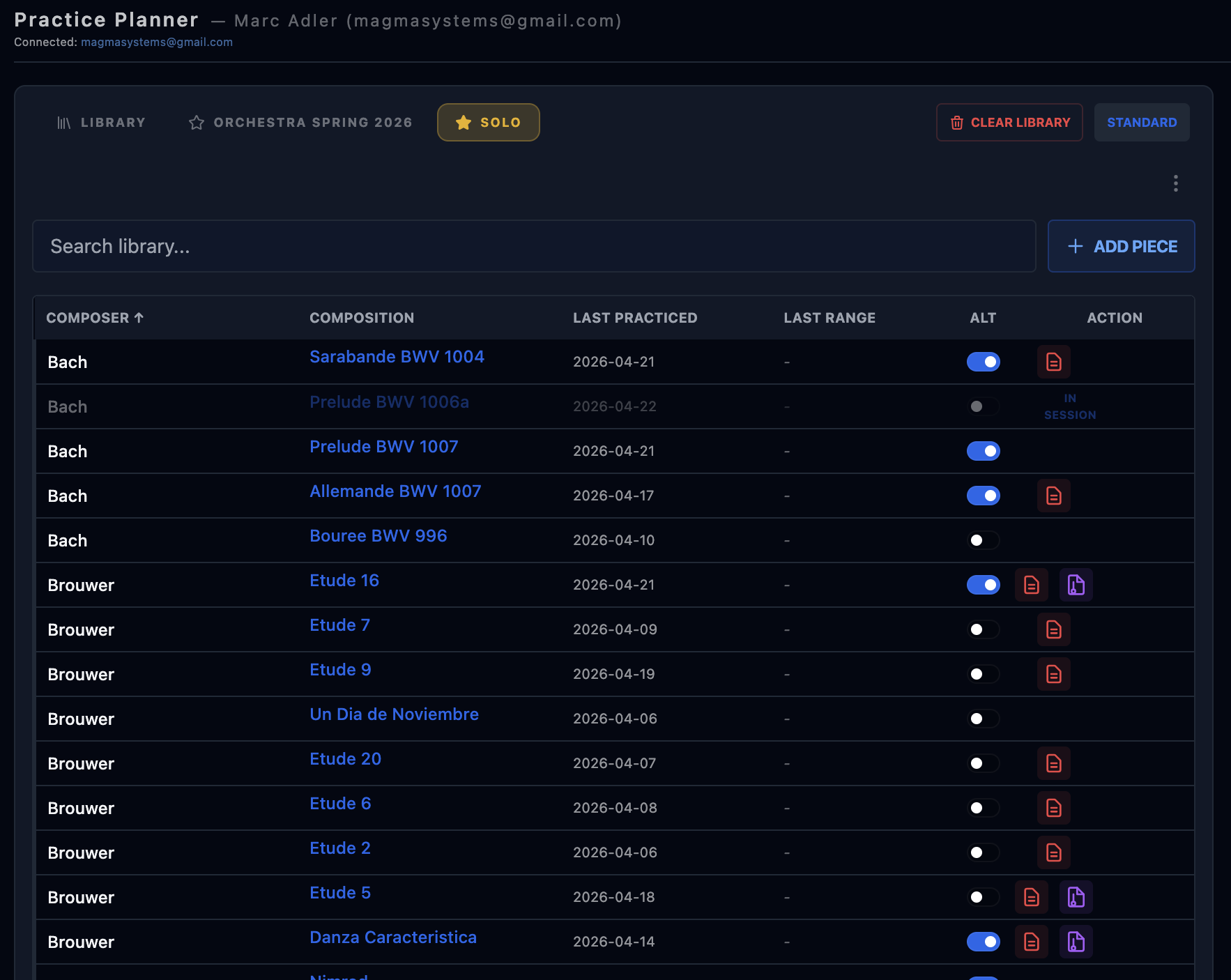
Click the Add Piece button in the left panel. Enter the Composer and Composition name.
Batch Import
Have a long list of pieces elsewhere? Click Upload Repertoire (Cloud icon) in the header. You can upload a simple text file with one piece per line in the format: Composer - Piece Title.
Organize with Saved Lists
Don't practice everything at once. Use Saved Lists to group pieces for specific goals (e.g., "Bach Program" or "Technical Routine").
- Click "New List" to start with a blank slate.
- Search for and add the pieces you want into your library view.
- Click Save as List in the library header.
- Give your list a name.
- To see this list as a tab at the top for quick switching, open the Saved Lists Modal (List icon in header) and click the Star next to your list's name.

Create Your Daily Practice Session
The right panel (Today's Session) is your workspace for the day. Building your routine is as easy as moving pieces from your library.
- Drag and Drop: To practice a specific piece, simply click and drag it from the Repertoire Library table on the left and drop it into the Today's Session table on the right.
- Add Ad-Hoc Pieces: Need to practice a quick scale or exercise that isn't in your main repertoire? Click the Add Ad-Hoc button in the Toolbar to create a temporary entry where you can modify the title, composer, and attach files on-the-fly.
- Session Notes: Enter your goals or reminders for today in the note field at the top of the session table. This is saved to your history for later review.
- Refining Your List: If you decide you don't want to practice a piece today, you can drag it back from the session table and drop it over the library table to remove it.
- Quick Add: Click the Calendar icon next to any piece in your library to add it to today's session instantly.
- Track Details: For each piece, you can log the Tempo you are working at and the Measure Range.
Attach External Files & Scores
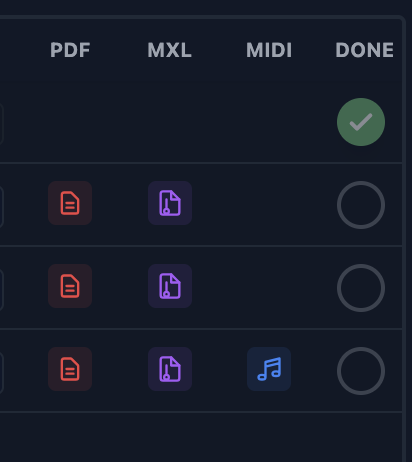
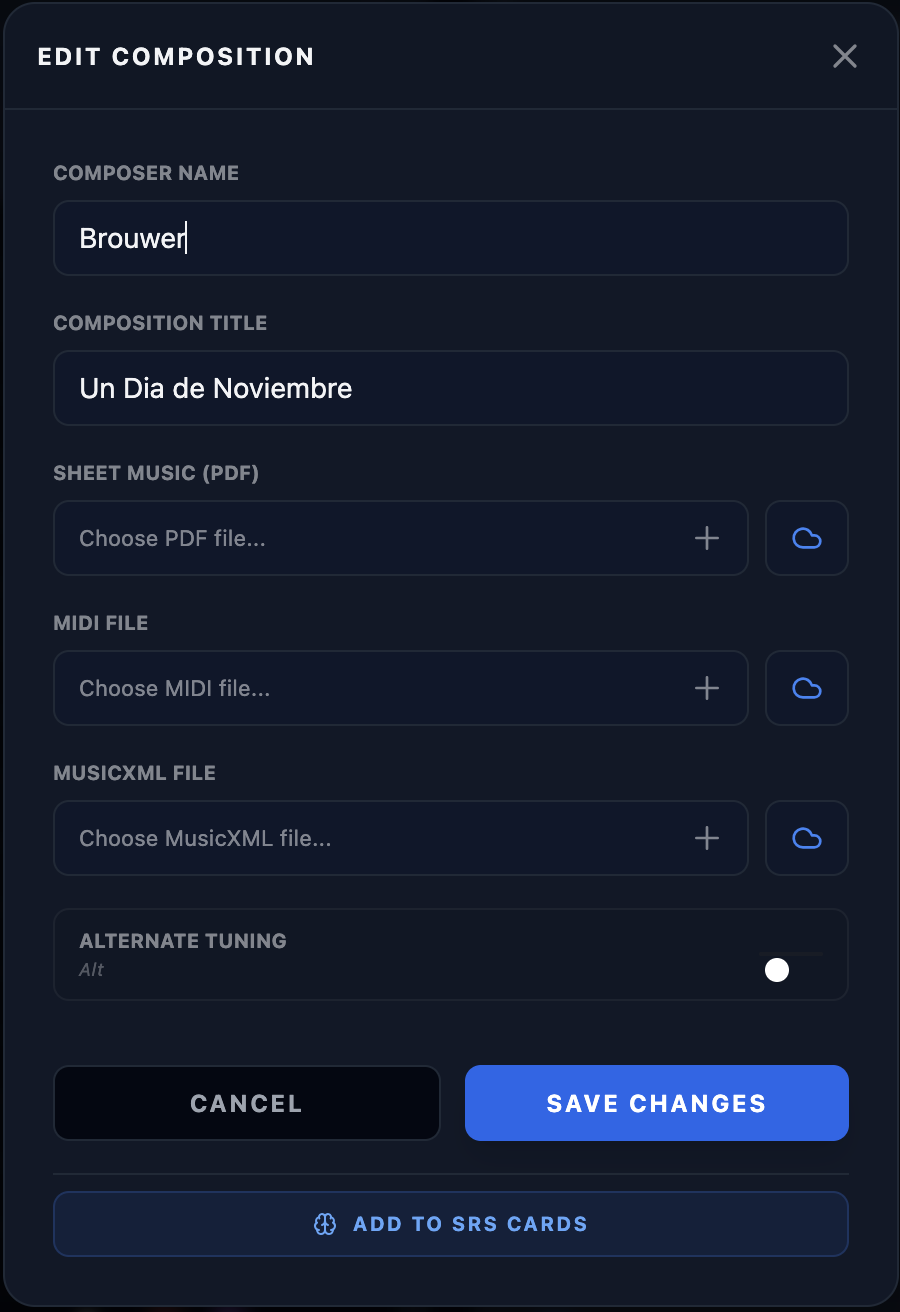
You can attach sheet music (PDFs), reference recordings (MIDI), or interactive scores (MusicXML) to any piece using local upload or Google Drive.
- Edit Piece Details: Double-click any piece to open the edit panel.
- Cloud vs Drive: Use the default upload field for standard storage, or click the Cloud icon to link a file directly from your Google Drive. (Drive support is optional and helps save storage space).
- PDF Scores: Attached PDFs show a red icon for immediate viewing with full foot pedal support.
- MIDI & MusicXML: Enhance your practice with reference audio or interactive scores.
Use the Score Switcher
If you have administrator access, the Score Switcher lets you keep multiple PDF scores open at once — just like tabs in a web browser.
- Click the Layers icon in the toolbar to enable the Score Switcher (it turns blue when active).
- Open any PDF score. A tab bar appears at the bottom of the viewer with one tab for the current score.
- Click + Add in the tab bar and search for another piece to add it as a second tab.
- Click between tabs to switch scores instantly. Your scroll position in each score is preserved when you switch away and return.
- Press Option+1 through Option+5 to jump directly to a tab, or Ctrl+W to close the active tab.
- Drag tabs to reorder them. The next time you open a PDF, the app will offer to reopen all your saved scores.
Review Your History
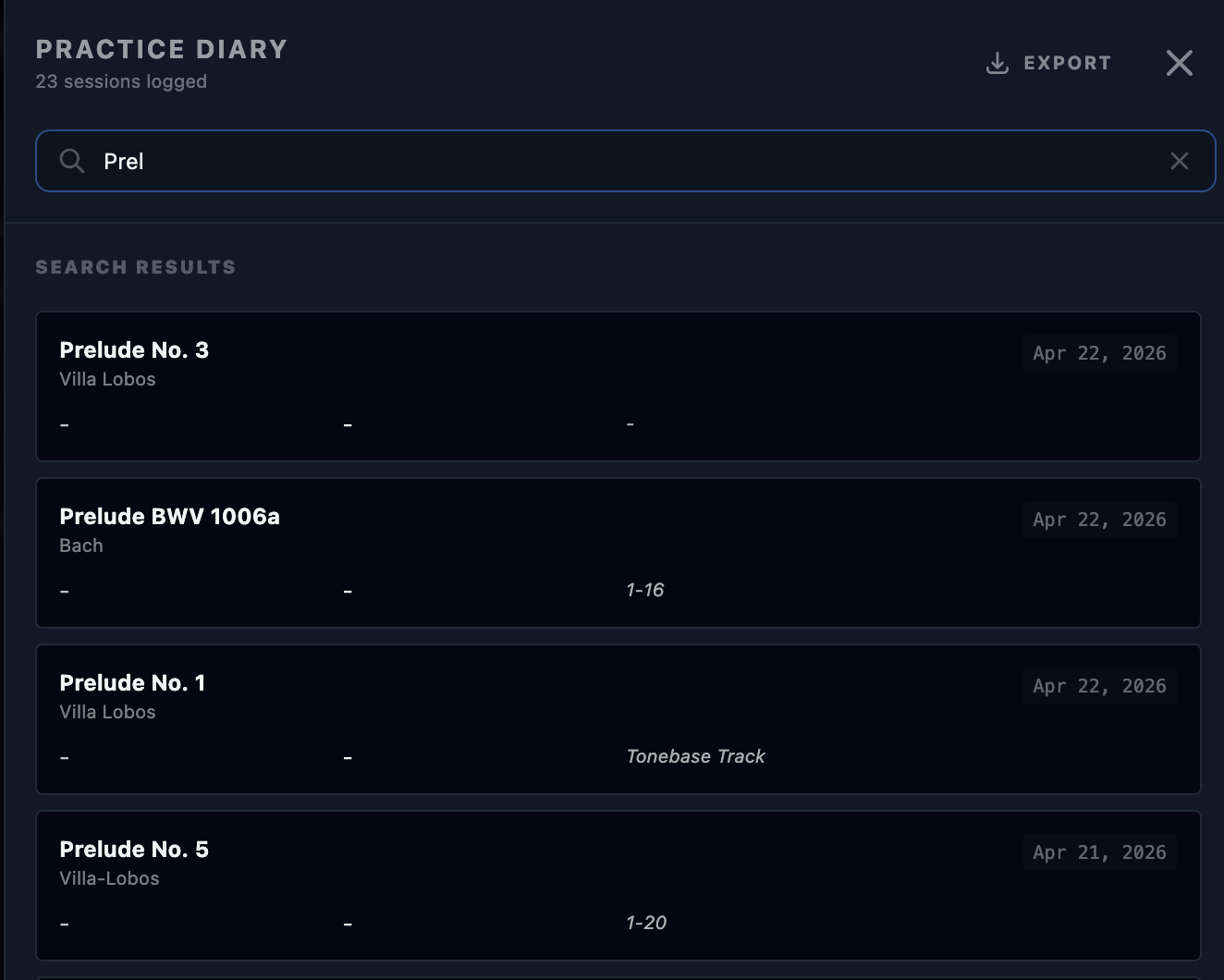
Ever wonder when you last practiced that difficult piece? The Practice Diary has the answers.
- Click the Calendar icon in the header.
- Type the name of a piece in the search bar.
- The diary will filter to show every day you worked on that piece.
- Measure Summary: Look at the top of the filtered view to see a merged summary of all measures you've practiced (e.g., "1-60").
Spaced Repetition (SRS)
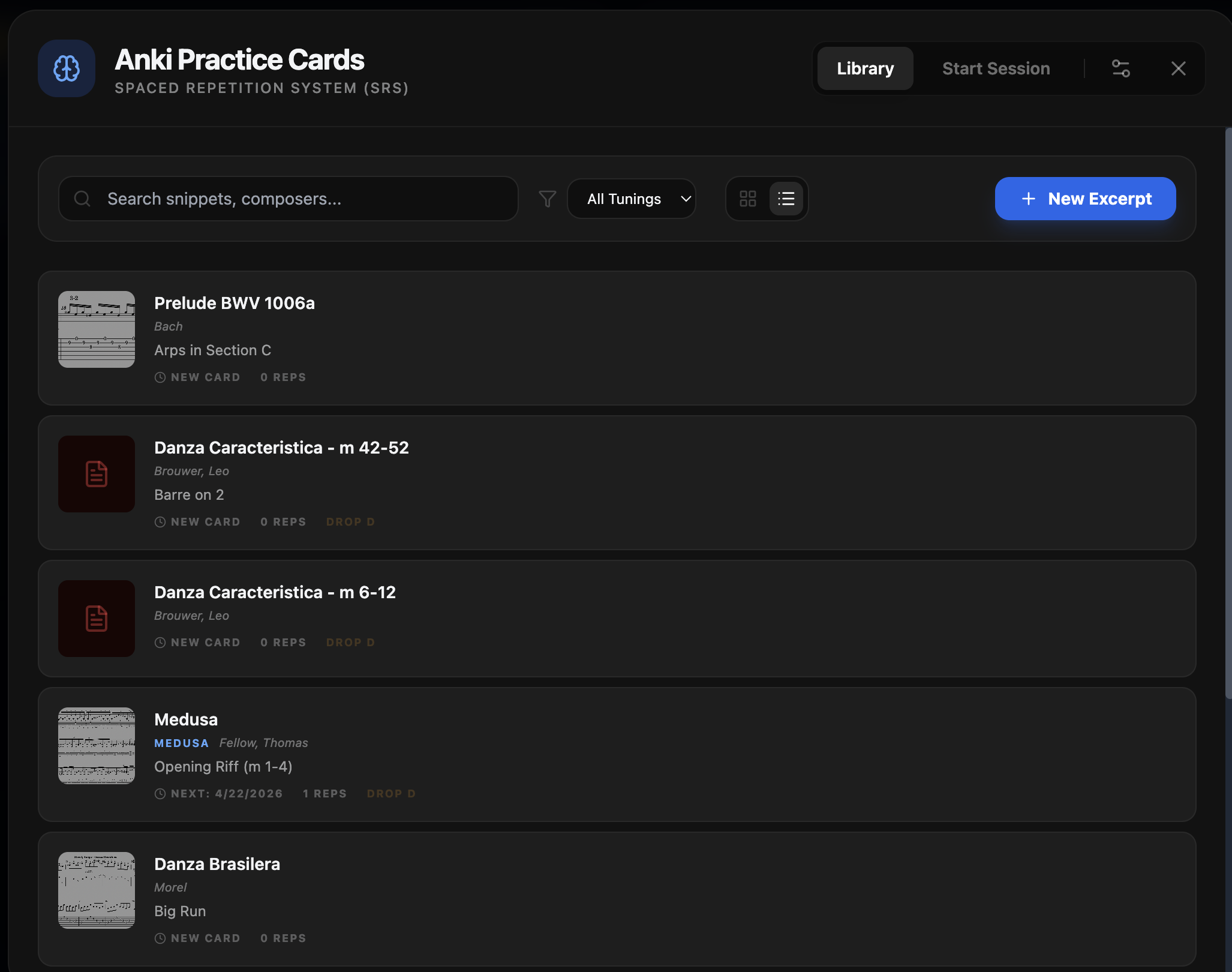
For difficult excerpts, use the SRS system. It will automatically remind you to practice specific bars before you forget them.
- Open a PDF score or MusicXML.
- Use the Excerpt Tool to crop a specific difficult passage.
- Give it a title and tuning.
- Practice it daily. Toggle between Grid View and List View (Brain icon in header) to find your excerpts easily.
- Click the Pencil icon to edit the title, composer, or detailed technical description.
Precision Tuning
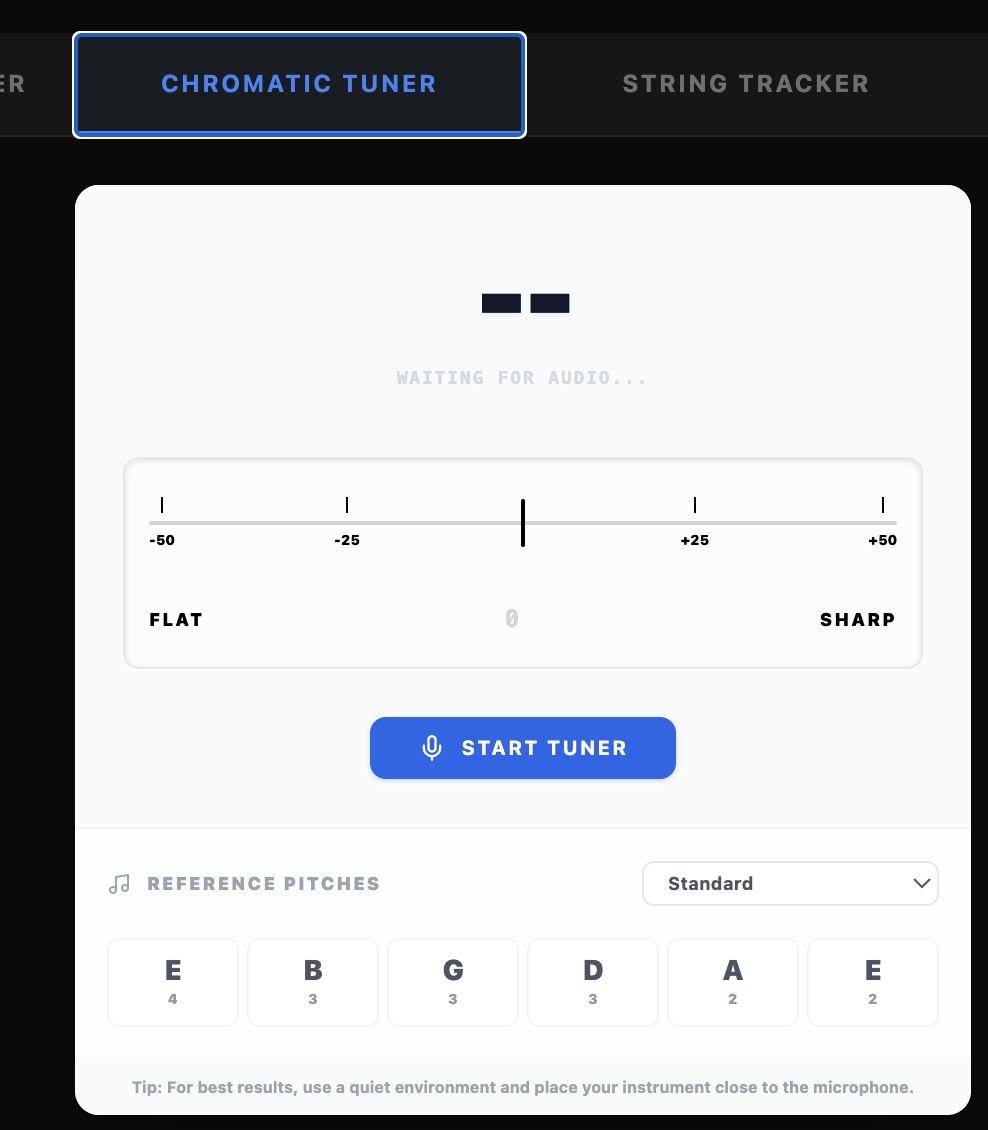
A stable instrument is the foundation of a good practice session. Open the Tools Panel (Puzzle icon) to access the professional-grade tuner.
- Visual Feedback: Use the horizontal needle to see exactly how many cents flat or sharp you are. The needle turns green when you hit the pitch perfectly.
- Reference Tone: You can choose to play a reference pitch for manual ear tuning.
- Sensitivity: The tuner is calibrated specifically for the harmonics and frequency range of the nylon string guitar.
Metronome & Advanced Automation
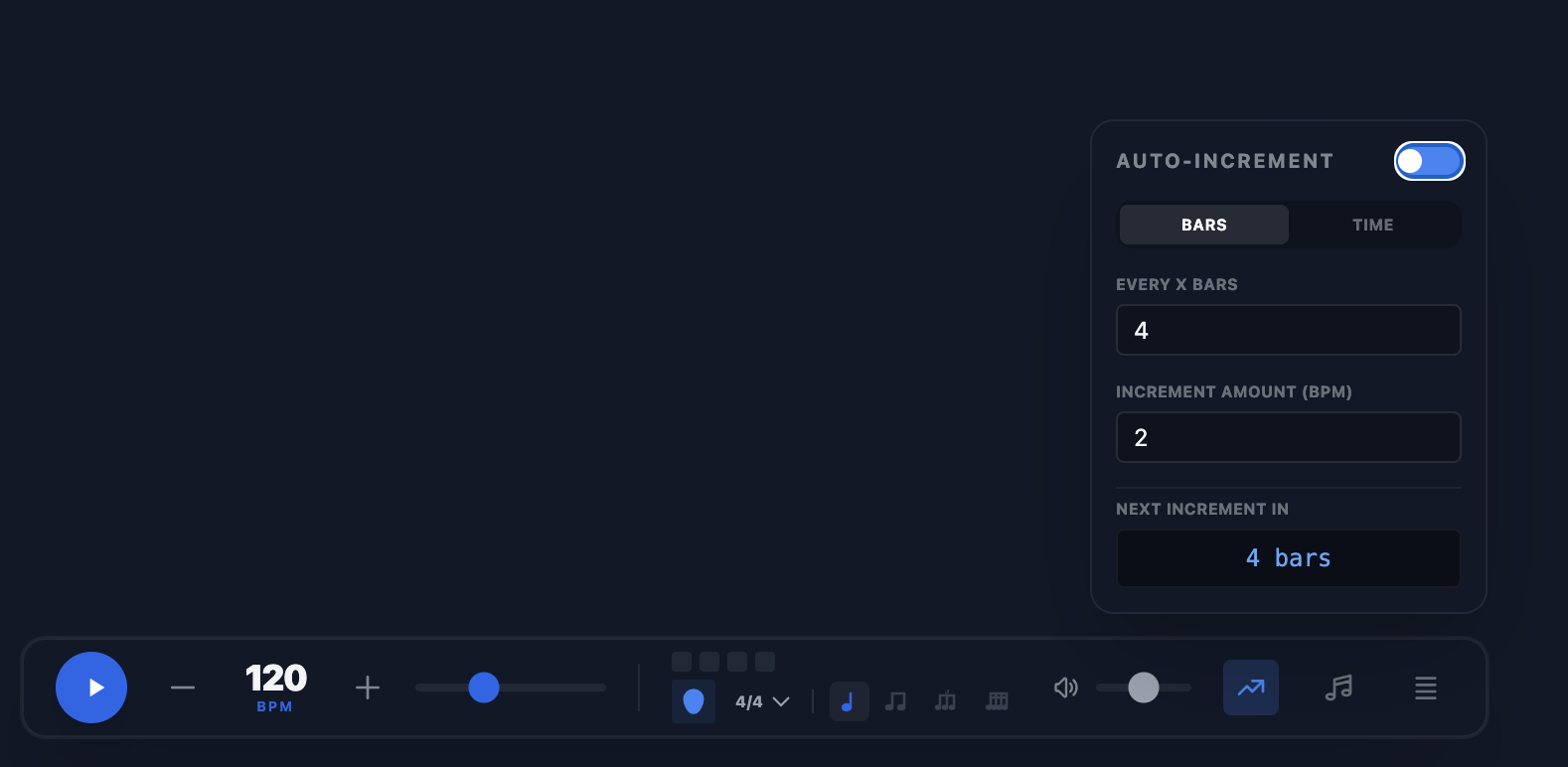
Our metronome does more than just click. It's designed to push your technical boundaries automatically.
- Auto-Increment: Click the Graph icon to open the automation settings. You can program the metronome to increase the BPM by a specific amount every fixed number of bars or minutes.
- Visual Cues: The interface provides clear visual flashes for both accents and subdivisions.
- Presets: Save your specific tempo, time signature, and subdivision settings as named presets for easy recall during technical drills.
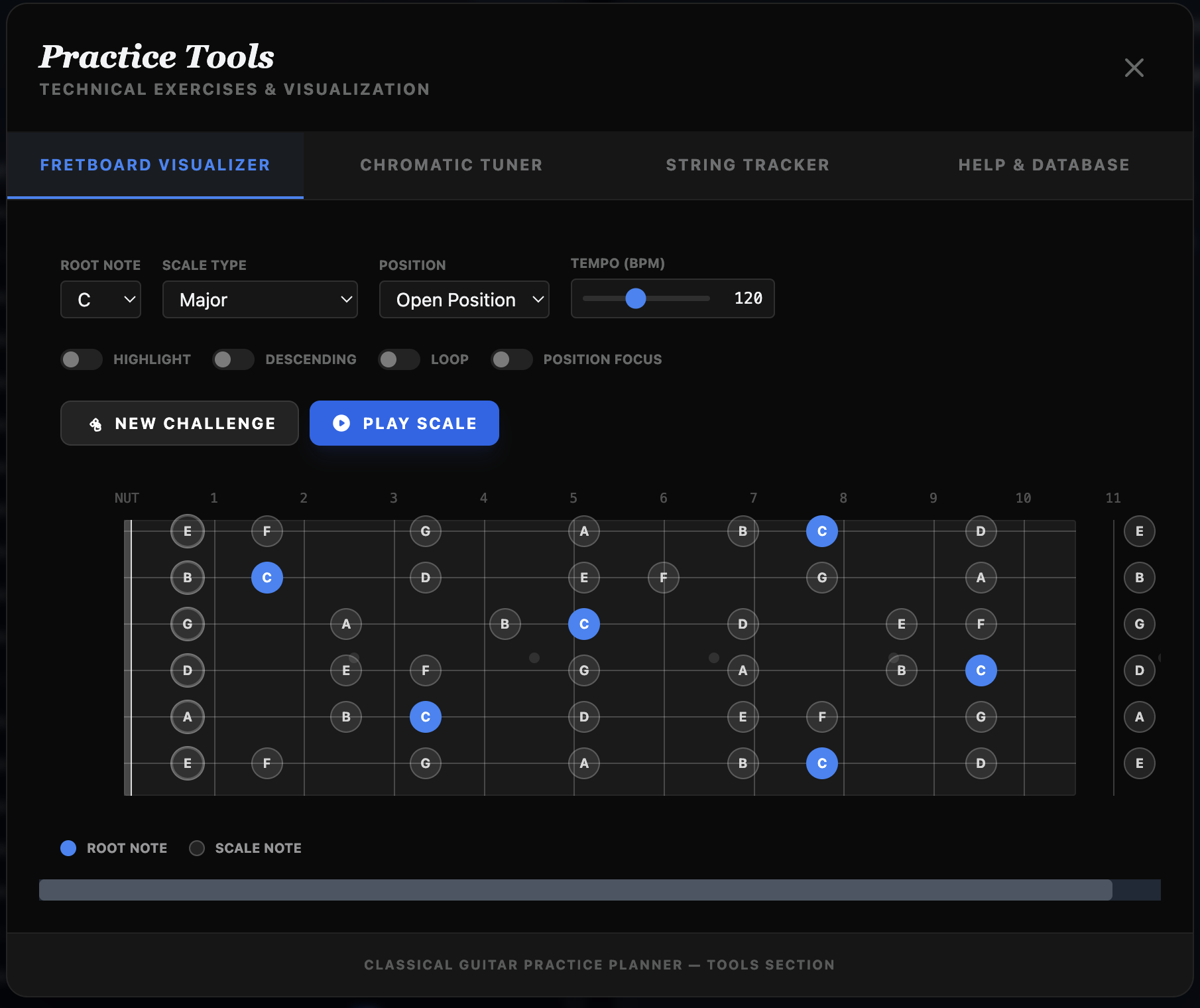
Fretboard Visualizer & Theory
Master the geography of the guitar neck with the interactive Fretboard tool.
- Scale Mapping: Visualize any scale or arpeggio across the entire fretboard.
- Note Identification: Click any fret to see the note name and its relationship to the key.
- Layouts: Toggle between different display modes to focus on intervals, note names, or specific fingerings.
Personalization & Settings
Make the app your own by adjusting the interface and behavior to match your personal practice style.
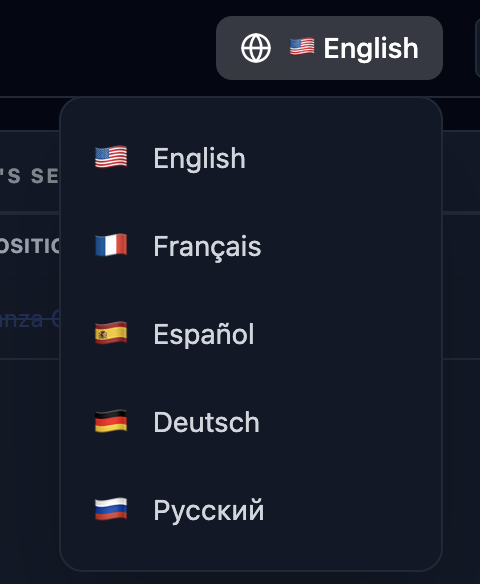
Multi-Language Support
Click the Globe/Flag icon in the top header to instantly switch between English, French, Spanish, German, and Russian. All tools, tooltips, and notifications will update immediately. Your choice is persisted across all your devices.
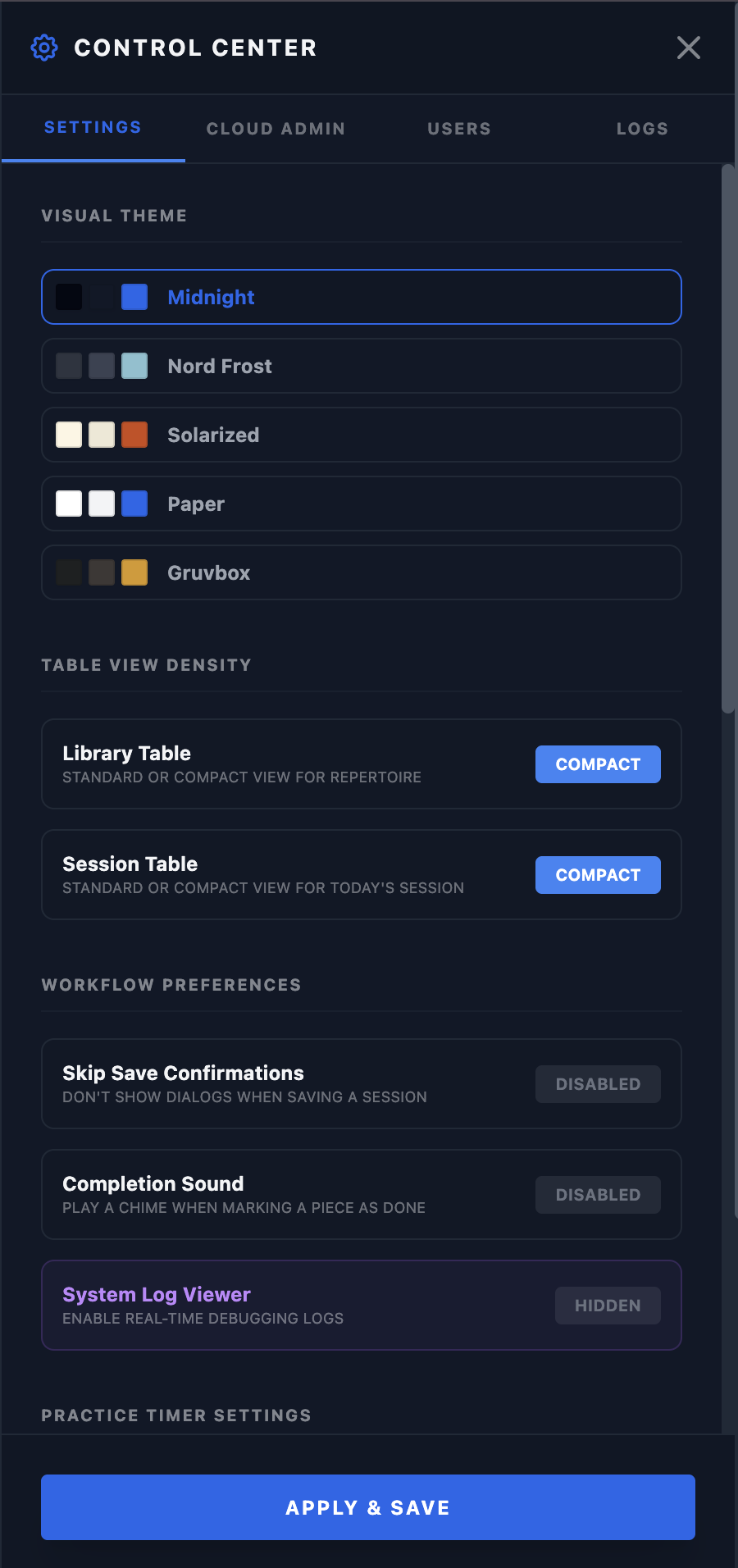
Themes & User Preferences
Open the Admin Panel (Gear icon) to select from several distinct visual themes like Midnight, Nord, or Solarized Light. You can also configure table density, workflow settings (skip confirmations), and practice timer sounds.
Install as a PWA
Take the app with you on stage or to the practice room by installing it on your device.
On Desktop: Use the "Install" button in your browser's address bar.
On Mobile: Use "Add to Home Screen" in your browser's sharing menu.
CMD+SHIFT+R (or CTRL+SHIFT+R) while the PWA is active.