1. Getting Started
Welcome to your digital practice companion. This app is designed specifically for classical guitarists to move away from messy notebooks and into a structured, data-driven practice routine.
- Authentication: Sign in with your Google account for instant setup, or register with an email address and password. All data is synced to the cloud and available across all your devices.
- The Dashboard: Your screen is split into two main areas: Repertoire Library (Left) and Today's Session (Right).
- Session Persistence: The app remembers your last used repertoire list and automatically loads it when you return, ensuring a seamless transition between practice sessions.
3. Internationalization & Languages
The application is localized to support a global community of classical guitarists. Our translation engine ensures that technical musical terms are accurate across all supported languages.
Changing Languages
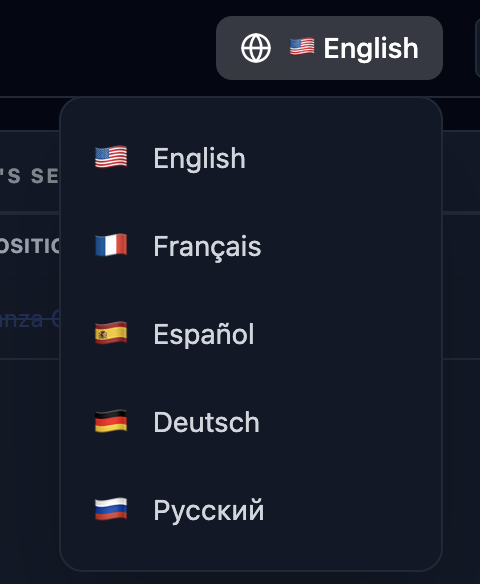
You can switch languages at any time using the Globe/Flag icon in the top-right corner of the header. The dropdown menu provides instant access to several languages, including English, French, Spanish, German, and Russian.
Sync Policy
"Language preferences are securely stored in your user profile. If you switch to Spanish on your phone, the app will automatically present the Spanish interface when you log in on your tablet or desktop later."
4. Repertoire Management
Your library is the foundation of your practice. It stores every piece you are currently working on or have mastered.
Adding Pieces
Click the "Add Piece" button in the Repertoire section. You can specify the composer, composition name, upload a PDF score (see Section 4), and attach a MIDI file for reference (see Section 13). New pieces are automatically added to your master library and any active saved list.
Editing Pieces
Right-click (or long-press) any piece in your library and select "Edit Piece Details", or simply double-click the piece. This allows you to update the composer, title, or attach/change the PDF score. Edits are synchronized across all lists containing the piece.
Alternate Tunings (Alt)
Pieces requiring alternate tunings can be easily identified in your library. Enable the "Alt" toggle in the repertoire table or when editing a piece's details.
- Small Toggle UI: Instead of a standard checkbox, a modern, compact toggle switch is used in the Alt column. When active, the toggle turns blue.
- Fast Toggle: You can toggle the tuning status directly from the main library table without opening the full edit modal.
Bulk Upload
Use the "Upload Repertoire" button to import a .txt or .csv file. Format: Composer - Piece Name or Composer, Piece Name.
// Sample upload file content:
Francisco Tárrega - Recuerdos de la Alhambra
Heitor Villa-Lobos - Etude No. 1
Isaac Albéniz - Asturias (Leyenda)
Johann Sebastian Bach - Chaconne in D Minor
Leo Brouwer - Estudios Sencillos No. VI
Agustín Barrios Mangoré - La Catedral
New List
Use the "New List" button to clear all pieces from your current view. This is useful when you want to start building a new specialized repertoire list from scratch without navigating away from your library. Note: This action only clears the view; it does not delete pieces from your master database.
Compact View
Toggle the "Compact" button to switch between a detailed view and a space-saving list view.
Sorting
Click Composer, Composition, or Last Practiced in the table header to sort by that column; click again to reverse the direction.
- Automatic Secondary Sort: When sorting by Composer (or Last Practiced), pieces that tie on that field are automatically alphabetized by Composition — so all of a given composer's pieces appear in title order within that composer's group, rather than an arbitrary order.
Custom Order (Drag to Reorder) — Saved Lists Only
While viewing a saved list (see Section 11), you can arrange its pieces in your own order by dragging. This is specific to that one list — it never affects the main Library or any other saved list.
- Drag to Reorder: Click and drag any piece in a saved list to a new position — the list remembers exactly where you dropped it.
- Sorting Replaces Custom Order: Clicking a column header (Composer, Composition, Last Practiced) while viewing a saved list re-sorts and permanently saves that new order for the list, replacing whatever custom drag order was there before. This can't be undone by switching sort modes — it's a real change, not just a different view.
- Session Round-Trips: Dragging a piece into Today's Session and later removing it doesn't change its position in the list's custom order.
- The main Library (no list selected) only supports the regular Composer/Composition/Last Practiced sorting — it has no custom drag order of its own.
- Difficulty Rating: Each piece can be assigned a difficulty rating from 1 (easiest) to 10 (most difficult) using the dropdown in the Edit Piece panel. Leave it blank if no rating is needed. This rating is visible in the edit panel and helps you balance your practice across pieces of varying complexity.
5. Planning Your Session (Drag & Drop)
The right panel represents your plan for today. You can build it by pulling items from your library.
- Resizable Panels: The divider between the Repertoire Library and Today's Session panels can be dragged left or right to resize both panels. Your preferred split is saved automatically and restored when you return to the app. On narrow screens and tablets the panels stack vertically, with a horizontal divider you can drag up or down.
- Adding to Session (Drag & Drop): Click and drag a piece anywhere on its row from the Repertoire Library and drop it into the Today's Session table. You will see a blue highlight indicating where the piece will land.
- Adding Ad-Hoc Pieces: Sometimes you want to practice a scale, an exercise, or a piece you don't want to track long-term. Click the Add Ad-Hoc button in the Session toolbar to create a temporary piece just for today. You can edit its title and composer directly in the table, and attach files to it just like normal pieces.
- Session Notes & Goals: At the top of the session table, you'll find a dedicated text field for Session Notes. Use this to record your specific focus for the day, technical reminders, or general goals. This note is saved to your practice diary when you finish the session.
- Removing from Session: If you decide you don't want to practice a piece today, you can drag it back from the session table and drop it over the library table. Alternatively, use the "X" icon next to the piece in the session.
- Editing Details: Double-click any piece in either the Repertoire or Today's Session table to quickly open the Edit Piece Details panel.
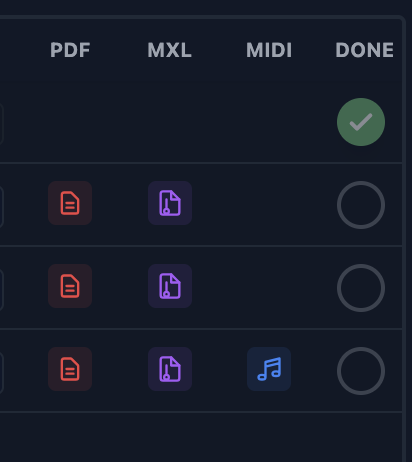
- Organized Layout: We've introduced dedicated columns for attachments. PDF, MusicXML, and MIDI files are displayed with distinct, colored icons for quick access.
Visual Reference: Attachment Icons
- Daily Grouping: All pieces practiced on a single day are automatically saved to the same practice session.
- Simple Timer & Alerts: A dedicated settable timer is available in the session header. You can set a specific duration (e.g., 20 minutes) and receive an alert when time is up.
- Tracking Progress: Mark a piece as "Done" once you've finished practicing it. When clicked, the circular indicator turns bright green.
5a. Using Ad-Hoc Pieces
An ad-hoc piece is a temporary practice item that exists only for today's session. It never appears in your Repertoire Library, and when you finish or clear your session its files are automatically removed from storage. Ad-hoc pieces are ideal for scales, technical exercises, short excerpts, or any material you want to work on today without adding it permanently to your library.
When to Use Ad-Hoc Pieces
- A scale or arpeggio exercise you do regularly but don't want cluttering your repertoire
- A single measure or passage (e.g. one measure exported from MuseScore as MXL) you are drilling in isolation
- A sight-reading piece you will never return to
- Any material your teacher gave you for one lesson only
Creating an Ad-Hoc Piece
- Click the Add Ad-Hoc button in the Session toolbar (above the Today's Session table).
- A new row appears in the session table with a placeholder title. The row is marked as ad-hoc.
- Double-click the row to open the Edit Piece panel. Fill in the title, composer, and attach any files (PDF, MXL, MIDI).
- The piece is now ready to practice. Its icons (PDF, MXL, MIDI) appear in the row just like regular pieces.
Attaching Files to an Ad-Hoc Piece
You can attach any combination of files to an ad-hoc piece through the Edit Piece panel:
- MuseScore (.mscz): Attach a MuseScore document directly — it is converted for viewing automatically. See section 7 for details and version limits.
- MXL (MusicXML): Export a single measure or passage from MuseScore or Sibelius as a MXL file and attach it here. The interactive MXL viewer (with looping, metronome, and speed training) works exactly the same as for repertoire pieces.
- PDF: Attach a PDF of the score or excerpt. The full PDF viewer with annotations is available.
- MIDI: Attach a MIDI file for audio playback reference.
What Happens at the End of the Session
This is the most important thing to understand about ad-hoc pieces:
- Finish Session: The ad-hoc piece is saved to your practice history (so it appears in the Practice Diary) and its Storage files (MXL, PDF, MIDI) are automatically deleted. The piece does not appear in your Repertoire Library.
- Clear Session: The ad-hoc piece is removed entirely with no history entry. Storage files are deleted.
- Remove individually: Click the X icon on the row. The piece is removed and its Storage files are deleted immediately.
⚠ Important: If you close the app or your browser without clicking Finish Session or Clear Session, the ad-hoc piece remains in your session when you return. Its files are not deleted until you explicitly finish or clear the session.
Adding an Ad-Hoc Piece to Anki Cards (SRS)
You can create an Anki card from an ad-hoc piece, but there is an important limitation: Anki cards only support images and PDFs — not MXL files. If your ad-hoc piece only has an MXL file attached, you will need to provide an image or PDF separately.
The recommended workflow:
- Open the MXL file in the MXL Viewer.
- Take a screenshot of the passage you want on the card (Cmd+Shift+4 on Mac, or your device's screenshot shortcut).
- Double-click the ad-hoc piece to open Edit Piece, then click Add to SRS.
- The title is pre-filled from the piece name. Paste your screenshot directly into the file attachment area (Cmd+V / Ctrl+V), or click to upload.
- Click Save Excerpt. The card is added to your SRS library.
💡 Tip: Anki cards created from ad-hoc pieces persist in your SRS library even after the ad-hoc piece is removed from your session. The card is yours to keep — only the temporary session entry and its files are cleaned up.
Ad-Hoc Pieces and the Current Session Filter in SRS
The SRS panel has a Current Session tab that shows only Anki cards linked to pieces in today's session. Ad-hoc pieces are intentionally excluded from this filter — only regular repertoire pieces qualify. This is by design: ad-hoc pieces are temporary, and their cards are better reviewed in the full Library view.
6. Sheet Music (PDF) & Google Drive
Keep your scores organized and accessible directly within your practice environment. We now support both direct uploads and Google Drive integration.
- Attaching a Score: When adding or editing a piece, use the "Sheet Music (PDF)" field. You can upload a file directly or link a file from your Google Drive.
- Google Drive Integration (Optional): Click the Cloud icon next to the file input to open the Google Drive Picker. This allows you to link scores already stored in your Drive without duplicating them in our cloud storage. Note: Using Google Drive is entirely optional.
- Drag-and-Drop: For a faster workflow, you can drag a PDF file directly from your computer (e.g., macOS Finder) and drop it onto any piece in the Library or Today's Session table.
- Viewing Scores: Pieces with attached scores will display a red PDF icon in the Action column. Click this icon to open the immersive PDF viewer.
- The PDF Viewer: The integrated viewer provides a clean interface for reading your music. It includes support for Linked Google Drive files, which are rendered seamlessly.
- PDF Viewer Close / Back Button: The PDF viewer features a prominent button in the top-left corner with a red hover effect. In standard modal mode it reads ✕ Close. In Full Page Mode (see below) it reads ← Back to App and navigates back to the practice planner.
- Full Page Mode: An optional setting (Settings → Workflow Preferences → PDF Viewer — Full Page Mode) replaces the modal panel with a full-browser-tab view. Open a score as usual; the browser navigates to a dedicated viewer page. Click ← Back to App (top-left) or the browser back button to return. All annotations, zoom, and Score Switcher features work identically.
- Metronome in PDF Viewer: A metronome toggle button is built into the PDF viewer toolbar, so you can show or hide the metronome without closing the score.
7. Interactive MusicXML Playback & Looping
The application features a sophisticated MusicXML score viewer and playback engine powered by OpenSheetMusicDisplay (OSMD). This allows you to view interactive scores, listen to high-quality classical guitar synthesis, and practice specific sections using advanced looping controls.
Visual Reference: MusicXML Viewer Interface
Accessing MusicXML Scores
Pieces with attached MusicXML files are identified by a purple Music Score icon in the Action column of your library or practice session. This icon is similar in shape to the PDF icon but colored purple to distinguish interactive scores from static PDFs.
Attaching MuseScore Files (.mscz)
You can attach a MuseScore file directly, without exporting MusicXML first. Use the MuseScore File field in the Edit Piece Details dialog and choose a .mscz file. The score is converted to MusicXML inside your browser each time you open it, so the file you keep in the app is always your original MuseScore document — re-attach it after editing and the viewer picks up the changes.
- Amber icon, shared column: MuseScore files show an amber score icon in the same column as the purple MusicXML icon, in both the repertoire and practice session tables. If a piece has both, the amber icon is shown and the MuseScore file is what opens — hover the icon to confirm.
- Everything else works the same: Looping, the metronome, count-in, speed training, measure selection and SRS export behave exactly as they do for a MusicXML attachment.
- MuseScore 3 and earlier, plus MuseScore 4.1: These convert correctly. If you attach a file saved by MuseScore 4.2 or newer, the app shows an error and refuses the attachment rather than importing a blank score. To use such a file, either export it as MusicXML from MuseScore and attach that, or re-save it with MuseScore 3.
- First use downloads the converter: The MuseScore conversion engine is only fetched the first time you open a
.msczscore, so it does not slow down app startup. It needs an internet connection, and conversion typically takes well under a second (a few seconds for very long scores). - Nothing extra is stored: The converted score exists only in memory while you view it. It is never saved to your storage quota, so a MuseScore attachment costs you only the size of the
.msczitself.
Score Interaction
- Visual Tracking: A green playback cursor tracks the music in real-time, synchronized with the audio and metronome.
- Auto-Scrolling: The score automatically scrolls to keep the current measure in view.
- Measure Selection (OpenSheetMusicDisplay engine): Click on any measure to select it. Use Shift + Click to select a range of contiguous measures. Selected measures are highlighted with a blue overlay. This allows for precise practice of specific phrases.
- Measure Selection (AlphaTab / Guitar Tab engine): Hold Cmd (Mac) and drag across measures to select a range — release to finish. Selected measures are highlighted the same way, and the "To SRS" export button appears whenever a selection is active, just like the OpenSheetMusicDisplay engine. To clear a selection (e.g. after an accidental drag), press Escape or click anywhere on the score outside the highlighted area.
- Loop Integration: If you have measures selected and enable looping, the selection range is automatically applied to the loop start and end fields.
- Seek & Jump: Click anywhere on the score to jump the playback cursor to that measure.
- Zoom Controls: Use the zoom buttons to adjust the score size for optimal readability.
Note Spacing (Density)
Some scores spread their measures out more than they need to, so fewer bars fit on screen. The three-bar icons in the toolbar control how tightly notes are packed horizontally.
- Tight: Compresses the spacing so more music fits on screen — useful for seeing a whole section at once, or on a smaller display.
- Normal: The score engine's own default. This is what you get until you change it.
- Roomy: Spreads the notes out, which is easier to read at arm's length from a music stand.
Your choice is remembered for next time and applies to every score. It changes only the layout — playback, your position in the piece, and any loop you have set are all unaffected. Works in both score engines.
Jump to a Rehearsal Mark
If a score has rehearsal marks, a Marks button appears in the toolbar next to the position bar. It lists every mark in the score with its bar number; click one to jump straight there. This is the quickest way around a long, multi-page score — much easier than aiming at a point on the position bar.
- Where the marks come from: They are read from the score itself, so there is nothing to set up. Both score engines support them.
- Playback is not interrupted: Jumping while stopped repositions and stays stopped; jumping while playing continues from the mark. The score scrolls to bring the mark into view either way.
- Any label works: Marks are usually letters (A, B, C), but whatever text the arranger typed is shown — Coda, ending, main "riff", and so on.
- The button only appears when a score has marks. If it is missing, the score has none — see the note below.
Important, if you write your own scores in MuseScore: the marks must be inserted with the Rehearsal Mark palette element (or Ctrl+M / Cmd+M). Plain staff text with a frame drawn around it looks identical on the page but is stored as ordinary text, and will not appear in the Marks list. If a score's marks are missing from the list, this is almost always why — select one in MuseScore and check that the Properties panel calls it a Rehearsal Mark.
Performance Mode
Performance Mode hides the toolbar and fills the screen with the score, leaving a small floating panel with the playback controls.
- The controls: Stop, Play/Pause, and a button to leave Performance Mode. You can also press Escape to leave.
- Move the panel out of your way: The panel floats on top of the score, so it will sometimes cover a stave. Press and drag the grip handle on its left edge to move it anywhere on the screen — this works with a finger on a tablet as well as with a mouse.
- Your position is remembered: Wherever you leave the panel is where it appears next time. If you rotate a tablet or resize the window, the panel is moved back on-screen rather than being lost off the edge.
Looping Controls
The looping tool is essential for mastering difficult passages. Controls are integrated directly into the playback toolbar for instant access.
- Enable Looping: Toggle the loop icon (next to the playback buttons) to activate looping mode.
- Set Range: Enter the starting and ending measure numbers in the input fields. These fields are enabled only when looping is active.
- Seamless Iteration: When playback reaches the end of the specified range, it will automatically jump back to the start of the loop measure.
- Start at Loop: If looping is enabled, pressing Play will automatically jump to the start of your loop range if you are currently outside of it.
Count-in Before Loop Restart
When looping is active, you can enable a count-in that plays a configurable number of audible beats before each loop restarts. This gives you time to reset your hand position and is especially useful at the beginning of a technical passage.
- Enable Count-in: When looping is on, a Count-in button (purple) appears in the toolbar. Click it to toggle the feature on or off.
- Set Beat Count: Use the − and + buttons next to the Count-in label to choose how many beats to hear before playback resumes (1–8, default: 2).
- Always Audible: The count-in clicks use the metronome sound and fire regardless of whether the visual metronome is currently enabled.
- Cursor Position: During the count-in, the score cursor jumps to the loop start measure immediately — you can follow along visually while the clicks play.
Speed Training (Automatic Tempo Increase)
Speed training is the classic technique for building up performance tempo: start slow, let the app gradually increase the BPM for you as you loop, and build up to full speed. The app automates this entirely.
- Open Speed Training: When looping is active, a Speed button (orange) appears in the toolbar. Click it to open the Speed Training popover.
- Enable / Disable: Toggle the switch at the top of the popover. When you enable speed training, the app saves your current tempo as the Starting Tempo. When you disable it, the tempo is automatically restored to that starting value.
- Increase every N loops: Set how many loops must complete before the tempo increments. Default is 2 loops.
- Increase by N BPM: Set how many BPM to add each time. Default is 2 BPM. The tempo is capped at 240 BPM.
- Starting Tempo display: The popover shows both the original starting tempo (orange) and the current live tempo (blue) so you can see your progress at a glance.
- Reset: Click the Reset button in the popover to immediately return to the starting tempo without disabling the automation.
- Works with Count-in: Count-in and Speed Training work together — the count-in clicks fire, then playback starts, then the tempo increments after the configured number of loops.
- Auto-closes: If you turn looping off, the Speed Training popover closes and automation is disabled automatically.
Tip: Set a comfortable starting tempo, enable looping on a difficult passage, and enable Speed Training at +2 BPM every 2 loops. Walk away and practice — the app will push the tempo up for you.
Metronome Synchronization
The integrated metronome is perfectly synchronized with the MusicXML playback engine.
- Tempo Sync: The metronome automatically adopts the BPM (Beats Per Minute) specified in the MusicXML file.
- Visual Feedback: The metronome pulses in time with the music, providing a clear rhythmic reference.
The Fretboard (new in v0.0.297)
See what your left hand should be doing, underneath the score. This is aimed at passages where reading the notation does not tell you where to put your fingers — dense chordal writing like Villa-Lobos's Prelude No. 5 or Walton's Bagatelle No. 5.
How to use it
- Select the passage. Click a measure, or click and drag across several — the same selection you already use for looping.
- Click the guitar button in the viewer toolbar, next to the full-screen button. The fretboard opens beneath the score.
- Press Play. The neck animates in time with the cursor. Use the panel's own Play button or the viewer's — they are the same transport.
- Or step through it. The ‹ and › buttons — or the left and right arrow keys — move one note at a time, as slowly as you like.
If you select nothing, the fretboard covers the whole piece.
- Chords show as chords. A note you struck earlier and are still holding stays on the neck while the melody moves above it, so you see the whole shape under your hand rather than just the note that happens to be sounding. Held notes are drawn as hollow, dashed circles; the notes being played now are solid.
- Fingerings. Where the arranger marked a left-hand fingering, the Fingers button writes it on the dots. Scores are usually fingered only in the passages that need it, so notes without a marking fall back to showing the note name. Notes and Frets are the other two labelings.
- It reads the tablature in your scores. Most MuseScore guitar exports carry a tab stave, and those string and fret numbers are exactly what the fretboard draws — it is showing you the arranger's own choices, not a computer's guess.
- Scores without tablature still work: the app works out a playable fingering from the pitches and marks the panel Estimated in amber, so you always know which you are looking at. Treat an estimated fingering as a reasonable suggestion, not gospel.
- Barres are drawn as a solid bar across the strings, the way a classical fretboard diagram shows them. The app reads them from the text you write over the staff in MuseScore — B7 (3) or C2 (5), and the bare forms B7 and C2, which mean barre the whole fret from the first string to the sixth. Roman numerals such as CVII work too. The marking is shown beside the passage name while it is in force.
- Hinge barres are drawn differently — as a dashed outline rather than a solid bar — because the finger is pivoted onto one string rather than lying across the fret. Write them as h10, or h10 (2) if the hinge stops two strings; without a count it means the first string alone. The h10 in bar 4 of Villa-Lobos's Prelude No. 5 is read this way.
- The barre lifts when the music says it has. There is no "barre ends here" marking in MusicXML, so the app holds the barre until either the next barre marking or a note that could not be played while barring — an open string, or a fret below the barre, on one of the covered strings. That means a barre is never left drawn across a passage where you have long since released it.
- Alternate tunings are respected. A score in drop D is drawn in drop D.
- Tempo can be changed from the panel, and the fretboard follows looping and count-in exactly as the score does.
- Tablature is not required to be visible. You can keep the score on standard notation only; the fretboard reads the tab stave whether or not it is being drawn.
Note: The fretboard is available with the AlphaTab rendering engine, which is the default. If you have switched the MusicXML engine to OpenSheetMusicDisplay in the Admin settings, the guitar button will not appear.
8. MIDI Playback & Reference
Listen to a reference performance of your repertoire directly within the app. This is invaluable for checking rhythms, tempos, and overall musical flow.
Visual Reference: MIDI Player Interface
Recuerdos de la Alhambra
Francisco Tárrega
- Attaching MIDI Files: When adding or editing a piece, use the "MIDI File" upload field. We support standard
.midand.midifiles. The app validates the file header to ensure it's a valid MIDI sequence. - Drag-and-Drop: You can also drag a MIDI file from your file explorer and drop it directly onto a piece in either table to instantly attach it.
- Accessing the Player: Pieces with attached MIDI data will display a blue Music Note icon in the Action column. Click this icon to open the immersive MIDI player modal. We've consolidated the interface to show a single, clickable icon for better clarity.
- Interactive Progress Bar: The progress bar is fully interactive. You can click or drag the slider to seek to any point in the performance. The time indicator updates in real-time as you drag, allowing for precise navigation.
- Playback Controls:
- Play/Pause: Start or pause the performance. The icon toggles between a triangle (Play) and double bars (Pause).
- Stop: Ends playback and resets the position to the start.
- Rewind: A dedicated button (
|◀) to instantly jump back to the beginning of the piece without stopping.
- Volume Control: Adjust the output level using the volume slider. This setting is independent of your system volume, allowing for fine-tuned balancing during practice.
- Sound Check: If you don't hear any sound, click the "Sound Check" button. This plays a short test tone and ensures the browser's audio engine is active and ready for playback.
- Immersive Experience: The player is designed to be distraction-free, focusing on the music and your progress through the piece.
9. Spaced Repetition System (SRS)
The Spaced Repetition System (SRS) is a powerful tool designed to help you master difficult musical excerpts. Instead of practicing everything every day, the system intelligently schedules excerpts based on your previous reviews.
Library View Modes
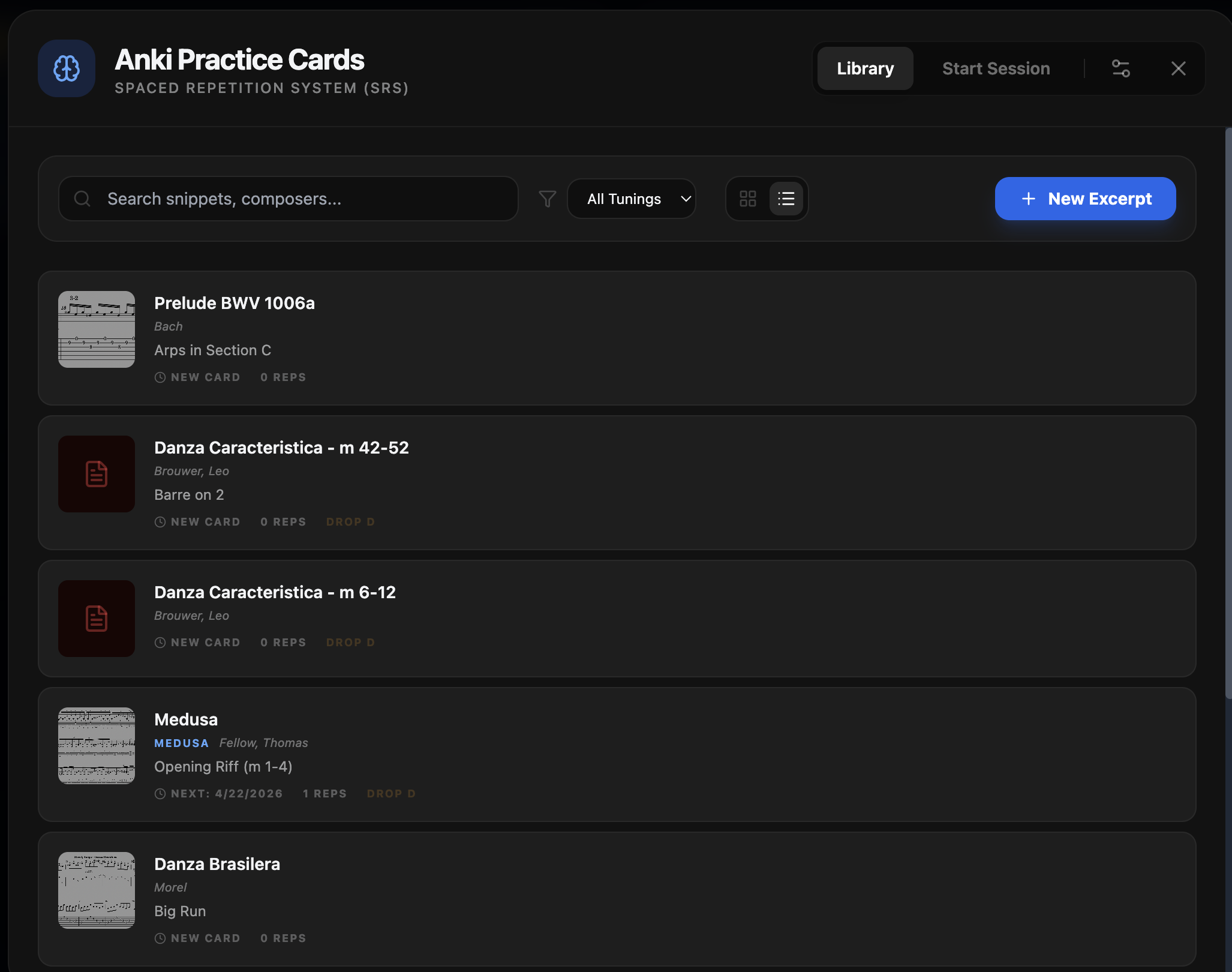
You can now toggle between two distinct view modes in the SRS Library. The app remembers your preference for future sessions.
- Grid View: A visual gallery of cards, perfect for scanning thumbnails of your musical excerpts.
- List View: A compact, text-based list that displays the Title, Composer, and Description. This is ideal when you have a large library of excerpts to navigate.
Editing Excerpts
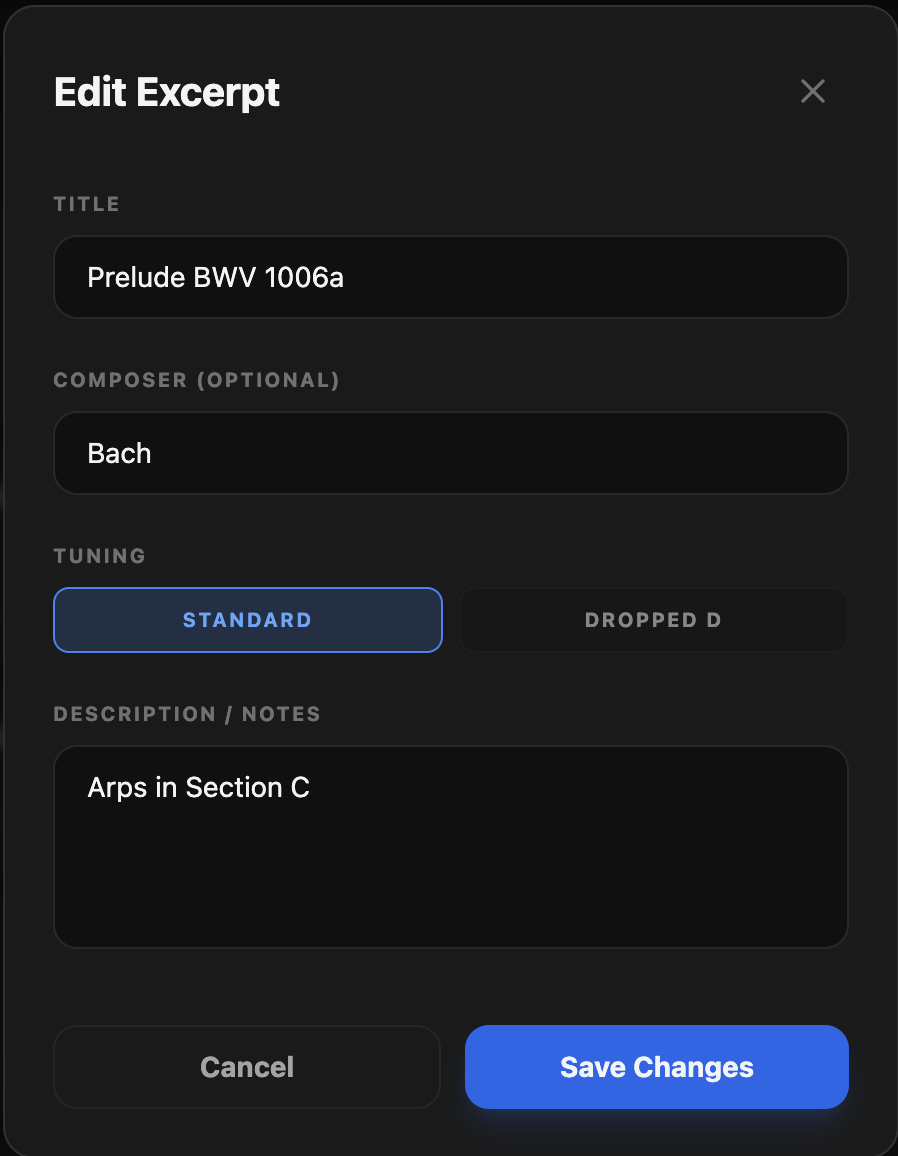
Click the Pencil icon on any card or list item to update its metadata. You can now modify the Title, Composer, and the detailed Description fields.
Simplified Workflow
We have removed complex grading tiers. Simply practice the excerpt, and click "Complete" to log it. The next review will be scheduled for the following day by default.
Practicing a Single Card
Double-click any card (grid or list view) to jump straight into practicing just that one excerpt, instead of starting a full session. The timer starts immediately, even if the card isn't due for review yet — double-clicking is always an explicit request to practice it right now. If the card is backed by a PDF, the PDF viewer now opens automatically — you no longer need to click a separate "Open PDF" button first.
You're never locked into a card: a small ✕ close button next to the progress dots at the top of the practice view lets you return to the Library at any time. It asks you to confirm first, and backing out does not grade the card — it stays due for review, exactly as if you hadn't opened it. You'll only see the "Session Complete" screen when you actually finish grading a card.
10. The Practice Diary & Data Export
The Diary tracks your progress over time. Every time you "Finish Session", your work is logged here.
Visual Reference: History Panel Header
Practice Diary
42 sessions logged- Saving a Session: Click "Save Session" to log all completed pieces to your diary. This clears them from your active session.
- Viewing History: Click the "History" icon in the header. You can expand previous dates to see exactly what you practiced, including tempos and notes.
- Session Notes History: Your session notes are displayed prominently alongside the date in your diary. You can edit these notes directly in the history panel at any time—just click on the note text to enter editing mode and press Enter or click away to save.
- Changing a Session Date: If you recorded a practice session under the wrong date (for example, entering notes from a handwritten notepad after the fact), you can correct the date directly in the Practice Diary. Hover over any session row to reveal a small pencil icon next to the date. Click it to replace the date with an editable date picker, select the correct date, then press Enter or click away to save. The session is immediately moved to the new date in the database. If a session already exists on the target date, the two sessions are automatically merged.
- Fuzzy Search: Use the search bar at the top of the History panel to find specific pieces or composers. The app will display a chronological list of every day you practiced that piece, along with the specific tempos, measure ranges, and notes recorded for those sessions. The search is optimized for precision, ensuring that numbered pieces (e.g., "Prelude No. 5") are correctly distinguished from similar works.
- Measure Practice Summary: When you filter the diary down to a single piece (by typing its name in the search box), a smart summary appears at the top. This summary automatically merges all the measure ranges you've practiced over time, showing you exactly which parts of the piece you've covered and where the gaps are.
- Example: If you practiced "1-10" on Monday and "15-20" on Tuesday, the summary will show "1-10, 15-20". If you then practice "11-14" on Wednesday, it will automatically merge into "1-20".
- Exporting Data: You can now export your practice history for external review or archival. Click the "Export" icon in the History panel.
- Formats: Choose between Plain Text, PDF Report, or CSV Spreadsheet.
- Date Range: Select a specific start and end date to export only the relevant portion of your history.
- Piece History: Right-click any piece in your library and select "View Practice History" to see every time you've worked on that specific work.
11. Saved Repertoire Lists & Favorites
Organize your repertoire into distinct sets for different contexts, such as solo performances, guitar quartet sessions, or orchestral work.
Visual Reference: Tabbed Favorite Lists
- Creating a List: Click "Save as List" in the Library section to save your current repertoire table. You can give it a name like "Solo Recital 2026" or "Quartet Repertoire".
- Favorite Lists: You can mark any saved list as a Favorite by clicking the Star icon in the list menu or the Saved Lists manager.
- Tabbed Access: Favorite lists appear as dedicated tabs at the top of your Repertoire section, allowing for instant switching.
- Draggable Reordering: You can click and drag these tabs to reorder them. Your custom order is automatically saved and remembered for your next session.
- Accordion Navigation: The Saved Lists modal uses an accordion behavior to keep your view organized. Expanding one list will automatically collapse any others, ensuring you only see the details for the list you're currently focused on.
- Structured Data Table: When a list is expanded, its contents are displayed in a professional, compact table showing both the Composer and the Title for every piece. The table is automatically sorted by Composer for easy scanning.
- Edit List Name: Click the "Pencil" icon next to any saved list to rename it.
- Full State Preservation: Saved lists capture the entire state of every piece, including attached PDFs, last practiced dates, specific measure ranges, and notes.
- Loading a List: Click the "Folder" icon in the header or the green folder icon next to a list name to load it. Loading a list will replace your current library view with the saved pieces.
- Active List Header: When a list is loaded, its name is prominently displayed at the top of the Library table in blue.
- Automatic Saving: While a list is active, any changes you make (editing a piece, adding a new one, or removing one) are automatically saved to that list.
- Exporting Lists: Click the "Download" icon next to any saved list to export it as a
.txtfile. This icon is conveniently located in the same row as the Edit and Delete actions.
12. Integrated Tools
The app includes a professional-grade metronome designed for precision and auditory clarity.
Interface Reference: Metronome
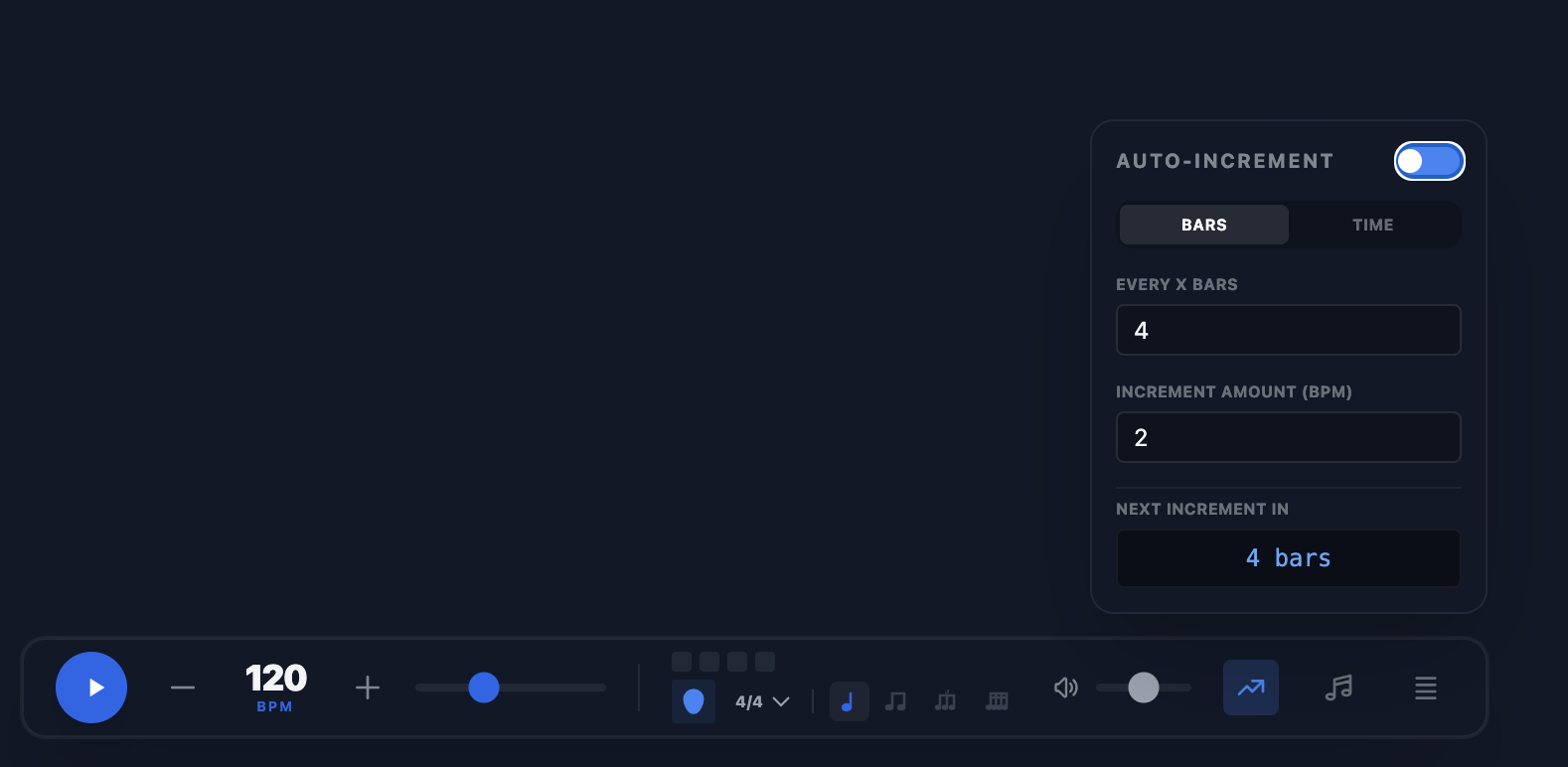
The metronome is located at the bottom-right of your practice dashboard.
- Core Controls: Located at the bottom-right of the screen by default. You can drag the metronome to any position on the screen that works best for your layout. You can adjust BPM using the slider, +/- buttons, or by typing directly. The visualizer shows the current beat within the measure.
- Subdivisions: Use the note icons next to the time signature to choose between Quarter Notes, Eighth Notes, Eighth Note Triplets, and Sixteenth Notes. Subdivisions are played at a slightly lower volume to help you maintain the main beat.
- Auto-Sync Tempo: Clicking the "Play" icon next to a piece's tempo in the session table will automatically set the metronome to that BPM.
- Metronome Presets: Click the "List" icon to manage your metronome presets.
- Saving: Save your current BPM, subdivision, time signature, sound type, and accent settings as a named preset.
- Loading: Quickly switch between practice configurations by selecting a preset from the list. The list displays key details like BPM, sound type, and accent status for each entry.
- Persistence: Presets are saved to your account and synced across devices, ensuring your favorite practice tempos are always available.
- Sound Customization: Click the "Music Note" icon to open the Sound Settings.
- Sound Type: Choose between Electronic (sine), Woodblock (triangle), or Cowbell (square).
- Independent Pitch: Set different frequencies (Hz) for the accented downbeat and regular beats to create the perfect auditory "pocket".
- Independent Volume: Balance the relative volume of the accent vs. normal beats.
- Auto-Increment Tempo: Click the "Rising Graph" icon to open the Auto-Increment settings.
- Mode: Choose between incrementing every X Bars or every X Minutes.
- Interval: Set how often the increment should occur (e.g., every 4 bars).
- Amount: Set how many BPM to add at each interval (e.g., +2 BPM).
- Tip: This is essential for "speed bursts" or gradual tempo building in technical studies.
13. Practice Tools
The Practice Tools section provides specialized utilities for technical development and musical visualization. Access these tools by clicking the "Puzzle Piece" icon in the header.
The tools window closes on Esc or the × in its corner. Clicking the darkened page beside it does nothing — these are tools you work in with an instrument in your hands, and a stray click used to shut the whole thing mid-exercise.
Chromatic Tuner
Stay in tune without leaving the app. Uses your device's microphone to detect pitch in real-time.
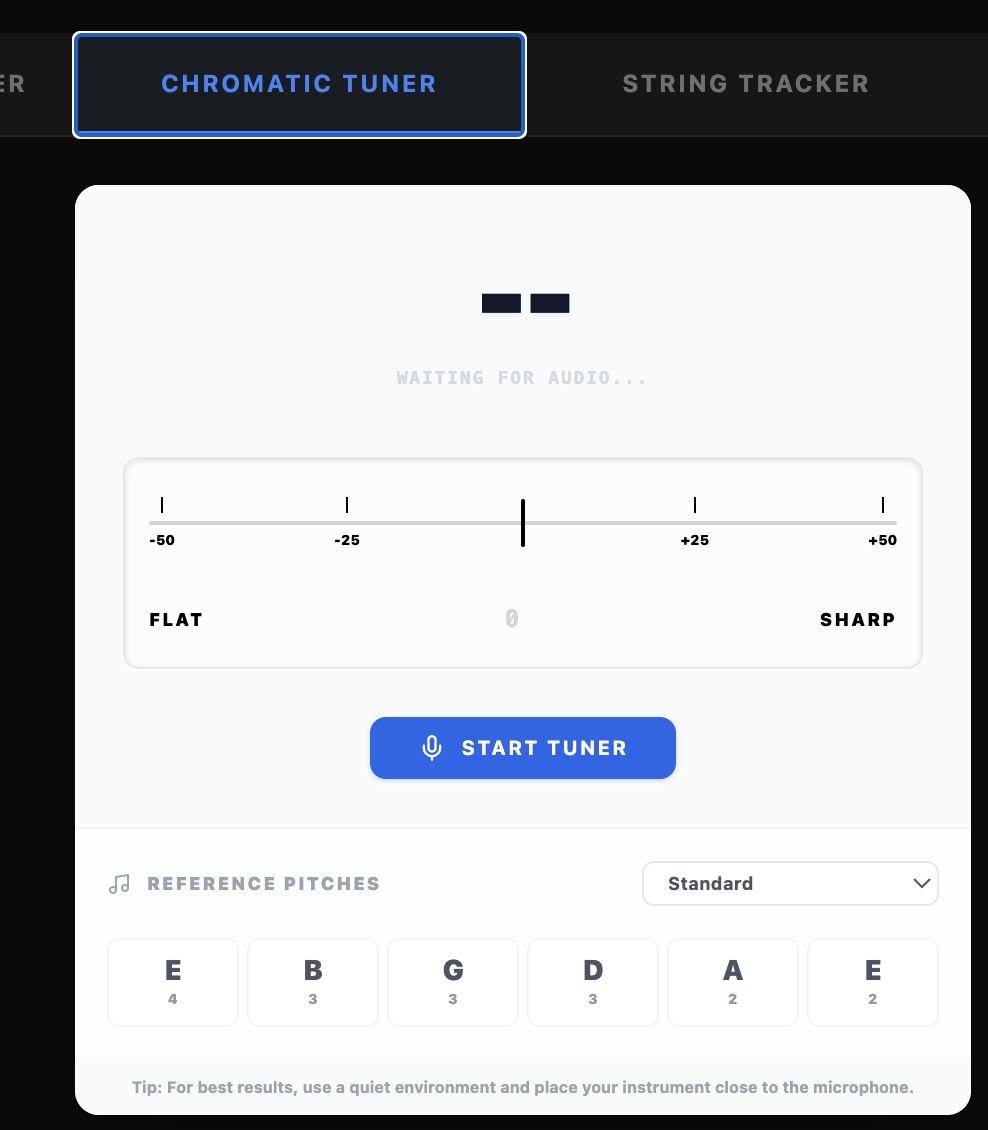
- Visual Dial: High-precision needle meter for accurate tuning. The needle responds in real-time to your instrument's pitch.
- Color Coding: Instant feedback via intuitive color shifts—Red when flat, Blue when sharp, and Bright Green when perfectly in tune (within ±3 cents).
- In-Tune Indicator: A dedicated check-mark and glowing halo appear when you reach the target pitch.
- Tuning Presets: Use the dropdown menu to select between Standard, Drop D, G Tuning (Renaissance), DADGAD, or Open D.
- Reference Tones: Includes reference tones for each string in the selected tuning for tuning by ear.
Fretboard Visualizer
Visualize and play scales across the neck. Now includes the integrated Scale Generator.
- Scale Challenges: Generate random Key/Type/Pattern combinations for practice.
- Interactive Playback: Hear the scales with high-quality nylon guitar samples.
String Change Tracker
Maintain your guitar's tone by tracking string age and maintenance history.
- Change History: Log the date, brand/type, and notes for every string change.
- Maintenance Logs: View a chronological list of past changes to identify your preferred string life.
- Quick Add: Easily log new changes directly from the Tools panel.
Shift Trainer (new in v0.0.302)
Moving the left hand along the neck — where most passages actually come apart. Open the Shifts tab in Practice Tools.
- The exercise is a measured gap. A note is held, then there is a stated silence while the hand travels, then the arrival note sounds — and then the same coming back. The training is shrinking that silence until the arrival is still clean.
- The number to watch is on the right: how many seconds you actually have. It turns amber below about a third of a second. Beats are a poor way to feel this; seconds are not.
- Both ends stay on the neck so the move is a picture rather than a surprise, and the green arrow is the path the guide finger travels. Note that this is often not the distance either note moves: shifting from 1st to 5th position and arriving on the fourth finger moves the notes seven frets, but the hand only four.
- Guide finger is the finger that keeps light contact through the move, so the hand travels along a rail rather than jumping and hoping. Set it to None for a clean lift, which is a harder and distinct skill.
- Set both positions, both fingers, and the string. Arriving on the fourth finger is different from arriving on the first; the sixth string is different from the first; and low positions are a wider stretch.
- A metronome runs with the exercise, on by default, so the gap has a pulse to be measured against.
- Ready-made exercises cover short and long shifts, coming back down, arriving on and leaving from the fourth finger, guiding with the second and third fingers, unguided lifts, and one with barely any time to move at all.
Slur Trainer (new in v0.0.301)
Hammer-ons and pull-offs. The right hand plucks once and the left hand sounds the rest — the whole difficulty is making the unplucked notes as strong as the plucked one. Open the Slurs tab in Practice Tools.
- Start from an exercise in the dropdown — hammer-ons and pull-offs for each of the six finger pairs, trills, stretched slurs, and pull-offs to an open string. Or set the knobs yourself; the dropdown drops to Custom as soon as you do.
- Fingers is the exercise. 1–2 is nearly free; 3–4 is the one everybody avoids and the one worth the time.
- Notes per pluck decides how much you get from one stroke: two is a single slur, three is there and back, four is a trill. Raising it makes the slurs faster rather than the exercise longer, so the tempo means what it says.
- Stretch widens the upper finger by a fret or two without moving the hand. 1–2 in position is a semitone; stretched by one it is a whole tone, which is a different exercise with the same fingers.
- Lower note can be the open string, so you can practise pull-offs with nothing waiting underneath — a distinctly harder thing than pulling onto a stopped note.
- Strings and position: switch strings on and off with the numbered buttons, and set the position. The exercise works through each string in turn. Low positions are a wider stretch, and the bass strings need more force than the first.
- The neck shows one string at a time with both frets of the slur on it, the note sounding filled in and the other drawn as the finger waiting. The curve between them is the slur, marked H for a hammer-on and P for a pull-off.
Why it plays evenly. A slurred note really is weaker than a plucked one — that is the problem you are practising to solve. The demonstration plays every note at the same volume on purpose, so what you hear is the target rather than the fault.
Giuliani’s 120 Arpeggio Studies (rebuilt in v0.0.303)
Mauro Giuliani’s 120 Studies for Right Hand Development, Op. 1a — the real ones, read from the engraved score. Open the Arpeggios tab in Practice Tools.
- You see the actual notation. Pick a study and its three bars appear on the staff exactly as Giuliani wrote them — two bars of the pattern between repeats, then the closing chord. Press play and the cursor follows.
- The repeat is played. A study runs as it is written: the two pattern bars, the repeat back, and then the closing chord — five bars of music from three bars of notation.
- The plucking fingers are shown as the score marks them: p i m a under the transport, and the same letter written on each note of the fretboard as it sounds. This is the substance of Op. 1a, and it is his marking, not a guess.
- Choose any of the 120 from the dropdown, step through with ‹ and ›, or press Random.
- Speed, looping and a metronome are on the transport. Looping is on by default, since these are meant to be repeated until the hand settles.
- The fretboard below shows the shape your left hand is holding. Note that this edition carries no tablature, so those positions are worked out from the pitches — they are a sensible reading, not Giuliani’s own fingering. The right-hand letters on the dots are his.
One misprint, flagged in the app. The engraving this is taken from labels two consecutive studies “No 82” and none “No 83”. The app numbers the studies by their position in the score, so all 120 are present and correctly numbered; when you reach study 83 it tells you the page says 82.
Fretboard Visualizer & Scale Challenges
The Fretboard Visualizer is now the primary engine for scale practice, incorporating the functionality of the previous Scale Generator tool.
Interface Reference: Fretboard Visualizer
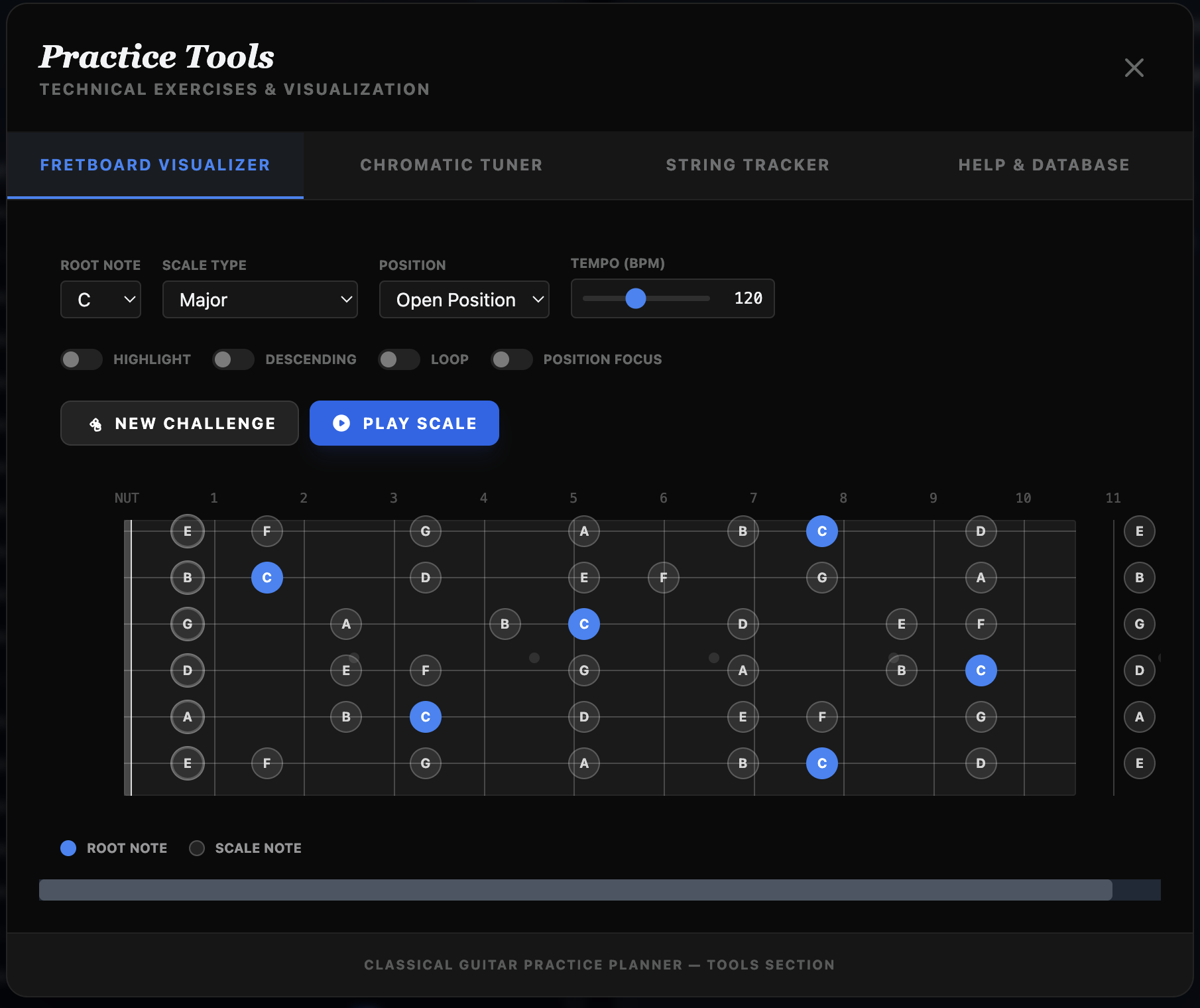
- Pattern and Rhythm are separate choices. Pattern decides which notes you play — straight up and down, in 3rds, 4ths, 6ths, octaves, or broken triads. Rhythm decides how long each note lasts — even, long–short, short–long, or speed bursts of four notes followed by a rest. You can combine any pattern with any rhythm, so thirds in a dotted rhythm is one exercise and thirds in bursts is another.
- Right Hand names the plucking fingers to alternate — i–m, m–a, i–a, or p–a–m–i for tremolo. This one is an instruction for you rather than something the app can play, so it appears beside the neck as a reminder while the scale sounds.
- Interactive Playback: Click "Play Scale" to hear the exercise with a nylon guitar sound. The guitar sound is fetched the first time you press Play, so the very first press may take a moment.
- The note being played lights up on the neck as the scale runs. It is always on — there is nothing to switch on first.
- Change things while it plays. Tempo, looping, direction and position focus can all be adjusted mid-scale. A tempo change takes effect at the start of the next pass through the scale, which is the musically natural moment for it.
- Descending and Loop: turn on Descending to come back down, and Loop to repeat. With both on, the root is not sounded twice at the join.
- Position Focus narrows the neck to the selected position (for example 5th Position), so you see only the shape you are working on.
- Click any note on the neck to hear it — useful for checking a pitch without playing the whole scale.
- Scale Challenges: Click "New Challenge" for a randomized key, scale, position, pattern, rhythm and right-hand fingering.
Rebuilt in v0.0.297. The neck is now drawn with true fret spacing — frets narrow toward the body, as on a real guitar — and the practice patterns actually change what you hear. Previously the pattern you chose was only a caption, and every pattern played a plain scale.
14. PDF Annotation & Score Viewer
Mark up your scores directly within the app to highlight difficult passages or fingerings.
Visual Reference: PDF Viewer Toolbar
Annotation Tools
- Pen & Highlighter: Draw directly on the score. Use the highlighter for marking sections and the pen for fingerings or notes.
- Text Tool: Click anywhere on the page to add a typed note.
- Selection Tool: Use the "Select" (arrow) tool to drag or scroll the score, or to click on existing text annotations to reposition or restyle them.
- Excerpt Tool (✂ Scissors): Click the scissors icon to enter region-selection mode. Drag a rectangle over any part of the score — a purple overlay shows your selection with a pixel-size hint. On release, the selected area is captured as a PNG image and sent directly to the Add New Excerpt modal, pre-loaded and ready to save. After capture the tool resets to pen. Minimum selection size is 20×20 px; clicking without dragging does nothing. Works correctly across multiple pages.
- Undo/Redo: A robust history system allows you to undo and redo any change, including drawing, text placement, style modifications, and deletions.
- Color & Size: Choose from a professional palette of colors and adjust the line thickness to suit your needs.
- Eraser: Remove individual marks by clicking on them.
Viewer Controls
- Navigation: Use the arrows to flip through multi-page scores.
- Zoom: Adjust the scale of the score for better visibility on your music stand. The toolbar also offers three one-click fit buttons: ⤢ Fit to page (fits the whole page, whichever dimension clips first), Fit to width (fills the viewer horizontally, may require vertical scrolling), and Fit to height (fills the viewer vertically, may require horizontal scrolling).
- Unsaved Changes Indicator: A static "Unsaved" icon appears next to the Save button whenever you have made edits that haven't been stored yet.
- Clear Annotations: The toolbar includes a ↺ reset icon (rotate-left arrow) to clear all annotations on the current page, and an ✕ icon to clear all annotations across the entire document. Both ask for confirmation before acting.
- Close / Back button: In standard modal mode, the top-left button reads ✕ Close. When Full Page Mode is enabled, it reads ← Back to App — clicking it (or the browser back button) returns you to the practice planner with all state intact.
- Exit Protection: If you try to close the viewer with unsaved annotations, the app will prompt you to confirm, preventing accidental loss of your work.
- Integrated MIDI Player: If a piece has an attached MIDI file, a compact player will appear in the PDF viewer toolbar. This allows you to listen to the reference performance while annotating or reading the score.
- Performance Mode: Click the "Eye" icon to enter a distraction-free viewing mode. This hides all annotation tools and toolbars, leaving only the score on a clean black background. A minimal overlay shows your current page and provides an "Exit" button to return to the editor.
- Persistence: Click the "Save" button to permanently store your annotations. They will be waiting for you the next time you open the piece.
Tip: Use a tablet and stylus for the most natural annotation experience on your music stand.
14a. Score Switcher
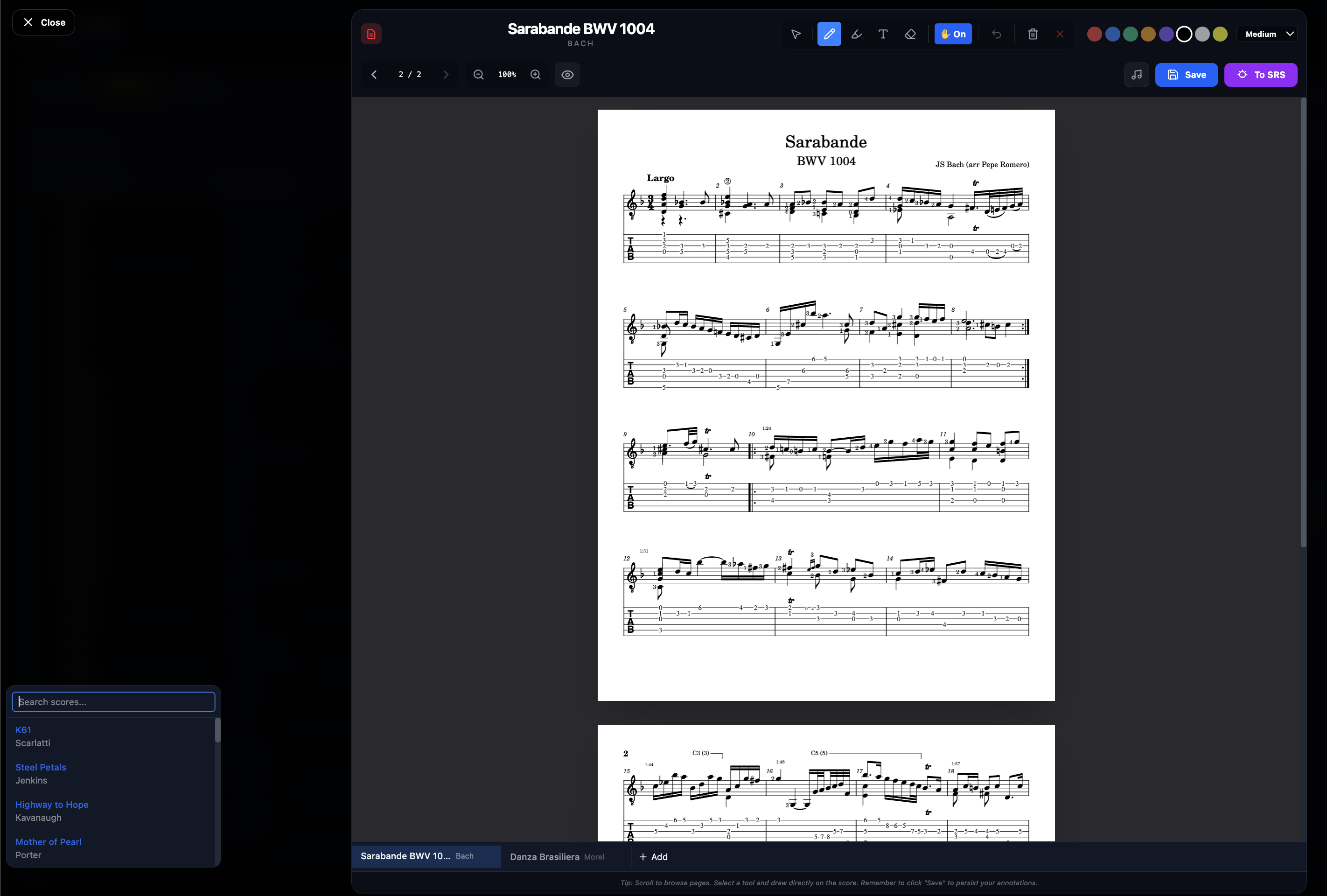
The Score Switcher allows you to keep multiple PDF scores open simultaneously in a tab bar at the bottom of the PDF viewer — similar to how tabs work in MuseScore 3. Switch between pieces instantly without closing and reopening the viewer.
Note: The Score Switcher is available to all users. Enable it in Settings → Score Switcher → Enable Score Switcher.
Enabling the Score Switcher
Click the Layers icon (stacked rectangles) in the main toolbar. When enabled, the icon turns blue. The setting is remembered between sessions.
Opening Multiple Scores
Open any PDF score from the repertoire table. A tab bar appears at the bottom of the viewer showing the current score. Click the + Add button in the tab bar to add more scores. The popover shows all pieces in your library that have PDFs attached — type to search by composer or title.
Switching Between Scores
- Click any tab to switch to that score instantly.
- Press Option+1 through Option+5 to jump directly to a specific tab by position.
- Press Ctrl+W to close the active tab.
- Drag tabs left or right to reorder them. The new order is saved automatically.
- Tab labels show the composition name and composer's last name (e.g. "Prelude BWV 1007 · Bach").
Reopen on Next Visit
The next time you open a PDF, all your previously saved scores reopen automatically in the tab bar — no prompt. This mirrors the behavior of MuseScore: your full tab set is always restored. You can close individual tabs you don't need using the ✕ on each tab.
Add Session Scores
An Add session button appears in the PDF viewer tab bar (to the left of Clear all) whenever your current practice session contains at least one piece. You can also trigger the same action by right-clicking the Score Switcher icon (stacked layers) in the main toolbar — a context menu appears with the Add Session Scores option. The toolbar path also opens the PDF viewer automatically if it is not already open.
Smart deduplication rules:
- If no scores are currently open, all session scores with PDFs are loaded.
- If every open score already belongs to the session, only the missing ones are added — no confirmation needed.
- If one or more open scores are not in the session, you are asked to confirm replacing them with the full session set.
Close Other Tabs
Right-click (or two-finger tap on a trackpad) any tab in the Score Switcher to open a context menu with a Close Other Tabs option — instantly closes every other open score, leaving only the one you right-clicked.
Note: the tab for the score the PDF viewer was originally opened for stays open even if you close others while viewing a different tab — it's anchored to that viewer window. Right-click that original tab directly to get down to just it alone.
Clear All Scores
When two or more scores are open, a Clear all button appears on the right edge of the tab bar. Click it to remove all scores from the switcher and close the viewer in one step. Use this when you want to start fresh with a new set of scores.
Repertoire Table Indicator
Pieces currently loaded in the Score Switcher show a small blue dot next to their composition name in the repertoire table, so you can see at a glance which scores are open.
Score Switcher Settings
In the Settings panel (gear icon), the Score Switcher section lets you configure the maximum number of open scores, whether to ask for confirmation when closing a tab, and whether to prompt for reopening scores on startup. On tablets, a warning appears if you exceed 3 open scores. See Section 17 for the full list of options.
15. Bluetooth Foot Pedal Support
Both the PDF Viewer and the Score (MusicXML) Viewer support standard Bluetooth foot pedals (like AirTurn, PageFlip, or Donner) for hands-free page turning while playing.
One difference between the two viewers. In the PDF Viewer, Space turns the page. In the Score Viewer, Space starts and stops playback instead — so if your pedal is set to Mode 4 (Space / Enter), it will play and pause rather than turn pages there. Use Mode 1 (Page Up / Page Down) if you want one pedal setting that turns pages in both.
Setup Instructions
- Pair your Pedal: Go to your device's Bluetooth settings and pair your foot pedal.
- Set Pedal Mode: Most pedals have multiple "Modes." Set your pedal to one of the following standard modes:
- Mode 1: Page Up / Page Down (Recommended)
- Mode 2: Arrow Up / Arrow Down
- Mode 3: Arrow Left / Arrow Right
- Mode 4: Space / Enter
- Open a Score: Open any PDF or MusicXML score in the app.
- Start Playing: Press the right pedal to scroll down (next page) and the left pedal to scroll up (previous page).
Supported Keys
The app listens for the following keyboard events sent by your pedal:
PageDownorSpace: Scrolls down by 80% of the screen height.PageUp: Scrolls up by 80% of the screen height.ArrowDown/ArrowRight: Scrolls down.ArrowUp/ArrowLeft: Scrolls up.
Pro Tip: Performance Mode
For the best experience, enter Performance Mode (the Eye icon). This removes all toolbars and maximizes the score area, making it easier to see your music from a distance while using your pedal.
16. Cloud Manager & Troubleshooting
The Cloud Manager (located in the Admin Panel) provides a comprehensive overview of your application's resource usage and document management.
System Information
- Firestore Documents: Tracks the total number of records in your database.
- Estimated Storage: Calculates the total storage footprint of your repertoire. Note: Documents linked via Google Drive do not count toward your local cloud storage quota.
- Deleting a piece reclaims its space. Removing a piece from your library also removes the PDF, MIDI, MusicXML and MuseScore files attached to it, and credits the space back to this figure. Until v0.0.305 the files were left behind, so the number here could drift below what was really being stored.
- Cost Reduction Insights: Provides actionable tips to keep your Google Cloud costs low, such as using compact views and compressing large PDFs.
Document Management
- Directory Listing: View all uploaded documents organized by the piece they belong to. Documents are named using the
{Composer} - {Title}template. - Cascading Deletion: Delete unused documents directly from the manager. Deleting a document will automatically remove its association from all pieces it was attached to.
- Upload Tracking: See exactly when each document was uploaded and its individual size.
Note: Deleting a document from the Cloud Manager is permanent and will remove the score/MIDI from all associated repertoire items.
17. Settings & Preferences
Access settings by clicking the gear icon (⚙) in the main toolbar. The Settings panel slides in from the right. All settings are saved to the cloud automatically and sync across your devices.
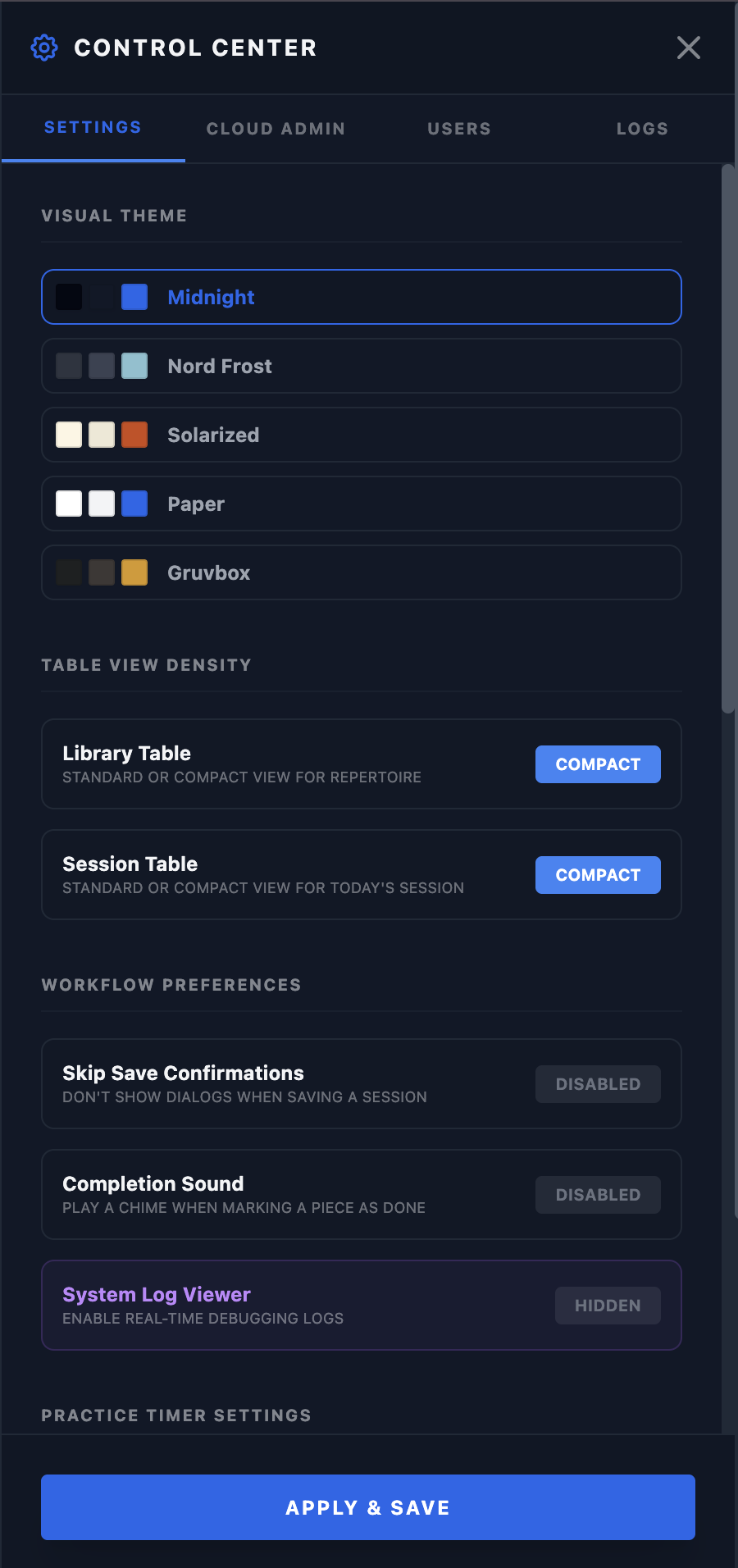
Visual Theme
Choose from five color palettes designed for different lighting conditions. Your choice takes effect immediately.
- Midnight — The default high-contrast dark theme (OLED black). Best for low-light practice rooms.
- Nord — A cool, frosted-blue theme inspired by arctic colors.
- Solarized Light — A warm, low-contrast light theme that is easy on the eyes in bright rooms.
- Paper — A clean, high-contrast black-on-white theme that mimics sheet music.
- Gruvbox — A retro-tech theme with a warm, earthy palette.
Table View Density
- Library Table: Toggle between Standard (comfortable row height) and Compact (reduced padding) for the Repertoire table. Use Compact when you have a large library and want more pieces visible without scrolling.
- Session Table: The same Standard/Compact toggle for the Today's Session table.
Workflow Preferences
- Skip Save Confirmations: When enabled, clicking Finish Session instantly archives your data and resets the session without a confirmation dialog. Useful if you find the dialog disruptive.
- Completion Sound: Plays a short chime when you mark a piece as done during a practice session. Toggle it off if you practice in silence.
- PDF Viewer — Full Screen: When enabled, the PDF viewer fills the entire screen with no borders, rounded corners, or padding. Ideal on a tablet where you want maximum score area. See Section 11 for more on the PDF viewer.
- PDF Viewer — Remember Zoom: When enabled, the app saves your zoom level to the cloud. The next time you open any PDF, your last zoom is restored automatically.
Exercise Highlighting
- Enable Highlighting: Pieces marked as exercises in your repertoire are visually distinguished from regular pieces in the tables. Toggle this off for a uniform look.
- Highlight Color: When highlighting is on, a color picker appears. Choose from six preset colors or use the custom color swatch to pick any color.
Practice Timer Settings
- Expiration Sound: Choose the sound played when a per-piece practice timer expires — Chime (a soft digital tone) or Bell (a fuller metallic tone). A preview plays when you click either option so you can compare them.
Maintenance Reminders
- String Change Reminder: When enabled, a notification banner appears at the top of the screen once your strings have exceeded their recommended life. Toggle it off if you manage string changes another way.
- Frequency: Use the slider to set how many weeks between recommended string changes (1–24 weeks). The countdown is based on the date of your last logged string change.
Score Switcher Settings
These options control how the Score Switcher tab bar behaves when it is active. See Section 14a for a full description of the Score Switcher feature.
- Maximum Open Scores: Limits how many PDF tabs can be open at once (1–10) on a computer.
- Maximum Open Scores on a Tablet: The same limit for iPads and other touch devices, applied separately because they have far less memory (1–10, default 3). Whichever of the two limits is lower applies. The default is deliberately conservative: iOS closes a page that uses too much memory, which on a music stand means losing your score mid-piece. Raise it only as far as your own device proves reliable.
- Confirm When Closing a Tab: When enabled, closing a score tab shows a confirmation prompt so you don't accidentally remove a score from the switcher.
- Ask to Reopen on Startup: When enabled, opening the PDF viewer offers to restore all the scores that were open in your last session.
- Clear All Open Tabs: Removes all scores from the switcher's memory. Use this to start fresh if the tab set has grown stale.
Data Export & Backup
Download a complete copy of your repertoire, practice history, string changes, and SRS data at any time.
- JSON: A machine-readable backup. Use this format for restoring your data or moving to another device. Keep a copy before any major changes.
- Text: A human-readable summary of your repertoire and practice history — useful for printing or sharing.
- PDF: A formatted document version of your practice history.
- Restore from JSON: Upload a previously exported JSON backup to restore your data. This merges the backup data with what is currently on the server.
Account Management
Delete My Account: Permanently erases your account, repertoire, practice history, and all associated data. This action cannot be undone. A two-step confirmation is required before deletion proceeds.
If you just want to sign out, use the Sign Out option in the user menu instead.
18. Customization & Themes
Practice in an environment that suits your mood.
Open the Settings panel (gear icon in the toolbar) to choose from five themes: Midnight (dark, OLED black), Nord (cool blue), Solarized (warm light), Paper (white, like sheet music), or Gruvbox (retro earthy). Your theme is saved to the cloud and restored on every device you use. See Section 17 for the complete list of personalization options.
19. Interface & Dialogs
The app uses a custom dialog and notification system to provide a consistent visual experience across all interactions.
- Consistent Branding: All alerts, confirmations, and prompts are branded with the app's name, "Classical Guitar Practice Planner".
- Toast Notifications: For non-critical confirmations (like "Session Saved", "Data Exported", or "PDF Deleted"), the app uses subtle "toast" notifications that appear briefly at the bottom of the screen and disappear automatically, ensuring your workflow remains uninterrupted.
- Responsive Design: Dialogs are designed to work seamlessly on both desktop and mobile devices.
- Keyboard Support: You can use the Enter key to confirm and Escape to cancel most dialogs.
20. PWA Installation & Refresh
The Classical Guitar Practice Planner is built as a Progressive Web App (PWA), allowing you to install it on your device for a native-like experience.
Installation
- Desktop (Chrome/Edge): Click the "Install" icon in the address bar (far right) or use the browser menu and select "Install".
-
iOS (Safari):
Tap the Share button (square with arrow) and select
"Add to Home Screen". - Android (Chrome): Tap the menu (three dots) and select "Install app".
Force Refresh & Sync
If you need to ensure you have the latest version or if data feels stale, use the hard refresh shortcut in your PWA:
CMD + SHIFT + R
or CTRL + SHIFT + R on Windows
This bypasses the cache and forces a full application reload.
21. Version History
August 2026
- Removing a score attachment now actually deletes the file. Clearing a PDF, MIDI, MusicXML or MuseScore file from the Edit Piece window removed it from the piece but left the file itself in cloud storage forever, counting against your storage total and impossible to find afterwards. It is now deleted, and the space is credited back. Removing an attachment from the piece row (the ✕ beside it) always worked correctly — this was only the Edit Piece window.
- Everything else here is internal. Files are now tracked by their storage identity rather than by their download link, so the app no longer has to work out where a file lives by reading its web address. Nothing changes in how you use the app; it makes deleting and moving files reliable instead of nearly-always-right.
August 2026
- The screen no longer sleeps while a score is open. Both the PDF and score viewers now hold the display awake for as long as a score is up, and release it the moment you close one. This is what you want on a music stand, and it replaces setting Auto-Lock → Never across the whole device — which stayed on afterwards and cost battery in every other app. It resumes correctly after you switch away and come back. On any browser too old to support it (Safari before 16.4) nothing changes.
- A page-turner pedal now works in the score viewer. Page Down and Page Up turn a page; the arrow keys nudge or turn. The PDF viewer has always done this — the score viewer did nothing at all, so a pedal was useless there. Space is still play/pause in the score viewer, deliberately: it is the more useful action for a score that plays back, and a pedal that sends Space can be set to send Page Down instead.
- The tablet limit on open scores is now a setting. Tablets were capped at 3 open scores while the desktop allowed up to 5, and nothing said so — the fourth score simply refused to open. Settings → Maximum open scores on a tablet now shows and controls it (1–10). The default stays 3 on purpose: an iPad has far less memory than a laptop, and iOS closes a page that overruns, which would lose your score mid-performance. Raise it only as far as your own device proves reliable.
- The home screen icon is a real icon. Adding the app to an iPad or iPhone home screen produced a blurry screenshot of the page, because the icon was only supplied in a format iOS ignores. It now installs the proper artwork.
August 2026
- When a score will not open, the viewer now explains why and what to do. It used to show a single line such as “could not find the Soundfont”, which named neither the file it wanted nor any way to fix it. It now tells you which file was missing, what the server said about it, and gives numbered steps to try.
- It checks the sound library rather than guessing. If the sound library is actually fine, the viewer says so and points you elsewhere — so you do not go hunting through soundfont settings that were never the problem. In particular it will tell you when the fault has nothing to do with MuseScore's own soundfonts, which are entirely separate from the viewer's.
- Technical details are one click away and copyable, for when you want to report a fault rather than fix it.
August 2026
- The score can now be played louder. The volume slider in the score viewer goes up to 200%, the same as the metronome already did — enough to hear the playback over your own guitar. Anything above 100% is a genuine boost and shows in amber.
- The volume slider now does something the moment you open a score. It previously showed 70% while playback actually ran at full volume, and only took effect once you dragged it.
- Your volume is remembered on that device, instead of resetting every time you open a score.
August 2026
- The count-in clicks are audible. Every metronome click was failing before it made a sound, so the count-in kept its timing but stayed silent. This also affected the metronome elsewhere in the app.
- Selecting measures tolerates a pause. Dragging across measures to select a range no longer resets if your hand hesitates part-way — a brief stumble on a trackpad is now treated as part of the same drag rather than the start of a new one.
- The System Log Viewer shows what actually went wrong. Errors were being recorded without their message or stack, so the log filled with entries that named a problem but not its cause.
- Fixed a link in this manual that pointed at a section that does not exist.
August 2026
- You can hear the count-in again. With looping and count-in both switched on in the score viewer, the count-in beats before each repeat were silent — the pause was the right length, but no clicks came with it. This happened whether the metronome was on or off. See the score viewer section.
August 2026
- The needle no longer flicks flat when you pluck. Even on a string that was already in tune, the needle would swing briefly to the left before settling in the middle. The tuner was reading the moment before the string was struck along with the note itself; it now waits the extra fraction of a second for the note to fill its ear, and starts each new pluck fresh instead of carrying over the last one.
August 2026
- The tuner now hears the bass strings. The low E and the dropped D often registered as nothing at all — the tuner listened to too short a slice of sound to make sense of a note that low. It now listens to twice as much, and reads the two lowest strings as reliably as the top four.
- Readings are far more accurate. A second measurement was being mixed into the first that was too coarse to help; on the low E it could pull the answer as much as a sixth of a semitone off, which is wider than the "in tune" window itself. It has been removed.
- The needle now points where it says. It sat slightly sharp of the true reading at every position, and disappeared off the edge of the scale when a string was very sharp. It also turns green, along with the note name, when the string is in tune — that colour change had never actually worked.
- The note is shown with its octave (E2 rather than E), the needle settles about four times faster, and a single stray reading no longer makes it lurch.
August 2026
- Three items that could not be saved can be edited again. One piece and two practice-diary entries were created before the app recorded a creation date, and the database was quietly refusing every change to them — edits appeared to do nothing. Their creation dates have been restored from their own records.
- A file of exactly 10 MB now uploads. The upload screen accepted it and the server then refused it, with an unhelpful error. The two limits now agree.
- Behind the scenes, the database and file-storage permission rules were audited end to end and several gaps closed. Nothing you do in the app changes.
August 2026
- Your files are stored under their real names. Early versions of the app saved every upload as
sheet-music.pdf,score.musicxmloraudio.midbehind the scenes, even though the app showed you the correct name. 54 files have been renamed to match what you actually uploaded, so a download gives you the file you expect rather thansheet-music.pdf. - Nothing you see in the app changed, and every score, part and recording still opens as before.
- The storage figure in Settings was recalculated from what is really stored, rather than from a running total that had drifted.
August 2026
- Deleting a piece now deletes its files too. Previously the piece disappeared from your library but its PDF, MIDI, MusicXML and MuseScore uploads stayed in cloud storage, counted against nothing and reachable by no one. The same was true of removing a single ad-hoc item from your session.
- Your storage figure is accurate again. Space is now credited back when files are deleted, so the number in Settings matches what is actually stored.
- Eight leftover files were found and removed by a new audit that compares every file in cloud storage against every score your pieces refer to. Nothing in use was touched.
- Deleted files stay recoverable for seven days before they are permanently removed.
August 2026
- The Arpeggios tab now plays the study you chose, all the way through. Studies past the first few played the wrong music — a fragment of an earlier study, ending on a chord — and the cursor sat in the wrong bar. Both came from one mistake about where a bar sits in time once its repeats are counted.
- Repeats are heard, and Loop works. The repeat sign is now played rather than passed over, and the Loop switch, which reads on from the moment the tab opens, is now actually on.
- Study 13 plays in full. The engraving omits its opening repeat sign, which sent the repeat back into study 12; the app supplies the missing barline.
- The tools window no longer closes when you click beside it. Esc and the × still close it. See section 13.
August 2026
- The Arpeggios tab now plays Giuliani’s actual 120 studies. It shows the engraved notation, three bars at a time, with his own plucking fingers marked — on the staff, under the transport, and on the fretboard as each note sounds. See section 13.
- The 120 generated patterns introduced in v0.0.300 have been removed. They followed Giuliani’s method but were not his studies, and a note at the foot of the panel was not a good enough way to say so.
- The edition misprints one number — two studies are both labelled “No 82”. All 120 are present and correctly numbered, and the app tells you where the page disagrees.
August 2026
- New: a shift trainer, in a new Shifts tab under Practice Tools. Set two positions, the fingers leaving and arriving, and the guide finger; the exercise gives you a measured silence to move in and a metronome to measure it against. It shows how many seconds your hand actually has, which is the number worth shrinking. See section 13.
- The neck keeps both ends of the shift visible and draws the guide finger's path as a green arrow — which is often not the distance either note moves.
August 2026
- New: a slur trainer for hammer-ons and pull-offs, in a new Slurs tab under Practice Tools. Choose a finger pair, a direction, and how many notes you want from one pluck — two for a single slur, four for a trill. The neck shows one string at a time with both frets of the slur and the curve between them. See section 13.
- Includes stretched slurs, pull-offs to an open string, and ready-made exercises for all six finger pairs in both directions.
August 2026
- New: an arpeggio trainer — 120 right-hand studies in the manner of Giuliani's Op. 1, in a new Arpeggios tab under Practice Tools. Pick a study, or press Random, or turn on Shuffle and let it hand you a new one every couple of repeats. The fretboard shows the chord you are holding with the plucked strings lit, and the pattern is printed above with the current stroke highlighted. See section 13.
- The studies work over any chord, not just Giuliani's C and G7 — Am/E7, D/A7, and F/C7, the last of which holds a barre through the whole study.
- Note on the numbering: these follow Giuliani's system and cover the same ground, but the order is this app's own rather than a facsimile of the original edition.
August 2026
- Hinge barres are now recognized. Write h10 over the staff and the fretboard shows it as a dashed outline rather than a solid bar, since the finger is pivoted onto one string rather than laid across the fret. Add a count — h10 (2) — if the hinge stops more than the first string. The h10 in bar 4 of Villa-Lobos's Prelude No. 5 was previously being ignored.
August 2026
- The fretboard now shows barres. A barre is drawn as a solid bar across the strings it covers, as on a classical fretboard diagram. It is read from the staff text you already write in MuseScore — B7 (3), C2 (5), or the bare B7 for a full barre — so nothing needs to change in your scores. The opening chord of Villa-Lobos's Prelude No. 5 shows its B7 (3) straight away.
- The barre stays drawn until the next barre marking, or until a note appears that could not be played while barring — an open string or a lower fret on a covered string. Your other staff text (poco rall., same as m. 6, fingering reminders) is left alone.
August 2026
- New: a fretboard under the score. Select a passage in the MXL Viewer — the same way you select one for looping — and click the guitar button in the toolbar. The neck appears beneath the score and animates as the music plays, or you can step through it one note at a time with the arrow keys. Notes you are still holding stay lit, so on chordal writing you see the whole shape under your hand rather than just the note sounding. Where the arranger wrote left-hand fingerings, they can be shown on the dots. See section 7.
- The fretboard reads the tablature stave your MuseScore exports already contain, so it shows the arranger's actual string and fret choices. A score with no tablature gets a worked-out fingering instead, clearly marked Estimated. Alternate tunings such as drop D are respected.
- The Practice Tools fretboard was rebuilt. The neck is now drawn with true fret spacing, and the scale practice patterns finally do something — "In 3rds" and "Speed Bursts" previously played an ordinary scale. Pattern and Rhythm are now separate choices you can combine freely. See section 13.
- In the scale tool, the playing note now always lights up (it used to be a switch that was off by default), tempo and looping can be changed while it plays, and clicking any note on the neck sounds it.
August 2026
- Left-hand fingerings written as letters are now left as they are. A few scores mark the left thumb with a letter rather than a number. The viewer's fingering correction only applies to numbered fingerings, so those scores are no longer altered.
- The fingering correction now checks whether it is still needed. It exists to work around a fault in the notation library, which the library's author has since confirmed and intends to fix. Once that fix arrives the viewer will detect it and step aside automatically, so fingerings cannot end up corrected twice.
August 2026
- New: the MXL Viewer now lays scores out the way they were engraved. A new pair of buttons in the toolbar chooses between line breaks as written — matching the bars-per-line you see in MuseScore — and automatic, which reflows the music to fit the window. As written is the default. Previously the viewer always reflowed, which on some scores left a single measure stranded alone on a line; on the Romero arrangement of the BWV 1004 Sarabande that meant 13 lines with two near-empty ones, where the score is engraved in 8 full lines of four bars.
- Pick automatic when reading on a narrow screen or a phone, where the written layout cannot reflow and will stay wide.
- Note on spacing: in the alphaTab renderer, the tight spacing option does squeeze the notes closer together, but it will not fit more measures onto a line — the line breaks come out the same whichever of the tighter settings you choose. If you were reaching for tight to get more music on screen, the new line-break control is what you want. Tight behaves as you would expect in the OpenSheetMusicDisplay renderer.
August 2026
- Fixed: left-hand fingerings in the MXL Viewer were shown one finger too low. A score marked 4 3 4 1 3 1 in MuseScore was displayed as 3 2 3 t 2 t, so every fingering was wrong and 1 appeared as a thumb. The viewer now shows the fingerings exactly as the arranger wrote them. Open strings continue to show as 0.
- Right-hand (plucking) fingerings are no longer shown in the MXL Viewer. They were being printed joined onto the left-hand fingering as a single unreadable mark, such as 3i or tm. Left-hand fingerings are shown on their own instead.
- Bar numbers and staff lines are now black in the MXL Viewer, instead of red and grey, matching MuseScore and the PDF viewer.
August 2026
- Fixed: jumping to a rehearsal mark now scrolls the score to it. Picking a mark from the Marks menu moved the playback position correctly, but the view stayed put, so on anything longer than one screen it looked as though nothing had happened. Clicking the position bar had the same fault and is fixed too. (Two earlier attempts, in 0.0.273 and 0.0.274, did not work — the scroll was being requested a fraction of a second before the score engine was ready for it.)
August 2026
- MuseScore watcher explains a permission problem instead of reporting your scores as missing: If macOS blocks the watcher from reading your scores folder, the log now says so and how to fix it, rather than listing every piece as "missing".
August 2026
- New: note spacing control: Three new toolbar buttons set how tightly measures are packed — Tight, Normal or Roomy. Tight fits noticeably more music on screen when a score spreads itself out more than it needs to; Roomy is easier to read from a music stand. Your choice is remembered and works in both score engines. See section 8.
- Interface text moved into the translation system: The MusicXML viewer, PDF viewer, SRS panel and Add Excerpt dialog now draw their labels and tooltips from the language files, so they can be translated. No visible change in English.
- American spellings throughout: A few stray British spellings in tooltips and labels (for example "Colour") are now American, matching the rest of the app.
August 2026
- New: jump to a rehearsal mark: Scores containing rehearsal marks now show a Marks button in the MusicXML viewer toolbar. It lists every mark with its bar number, and clicking one jumps straight there — far quicker than aiming at a spot on the position bar in a long score. Works in both score engines, and the score scrolls to follow. The button is hidden for scores with no marks. Note that marks must be MuseScore Rehearsal Mark elements (Ctrl+M); framed staff text looks the same but is not recognized. See section 8.
August 2026
- Fixed: some scores played silently: A score could load and show a moving playback cursor while producing no sound at all. This affected any score with a string indication — the circled number telling you which string to play — written on the standard notation stave, which is common in classical guitar editions. A single such marking was enough to silence an entire piece. Reported on Villa-Lobos, Prelude No. 5; the marking in bar 6 silenced all 42 bars.
August 2026
- Smaller, movable playback controls in Performance Mode: In the score viewer's Performance Mode, the floating playback panel covered part of the tablature. It is now roughly a third of its former size, and you can drag it anywhere using the grip handle on its left edge. Where you leave it is remembered for next time, and it is kept on-screen if you rotate a tablet. The separate Rewind button has been removed — it did exactly the same thing as Stop.
July 2026
- Attach MuseScore files directly: A new MuseScore File field in Edit Piece Details accepts
.msczdocuments. They are converted for viewing in your browser each time the score is opened, so you keep your original MuseScore file rather than a separate export. MuseScore files appear as an amber icon in the same column as the purple MusicXML icon. See section 7. - Clear error for newer MuseScore files: Files saved by MuseScore 4.2 or newer cannot be converted, and attaching one now shows an explanation with two ways to proceed, instead of silently importing an empty score.
- Score titles no longer run into the composer: Some scores displayed their title and composer joined together with no space, such as "SaltarelloVincenzo Galilei". The title is now shown correctly.
- All voices are now the same color: In a score with two or more voices, the second voice was drawn in light gray, which looked like a rendering fault. Every voice now uses the same color as the first.
- MuseScore files now open in the OSMD engine too: If you had chosen OSMD rather than AlphaTab in the Admin settings, clicking a MuseScore file left the viewer spinning forever. Both engines now open
.msczfiles. - An open score refreshes itself after a sync: If the MuseScore watcher uploads a new version while you have the score open, the viewer reloads it for you — but never while music is playing. A reload during a practice loop would stop playback, so it waits until you stop, then picks up the change.
- New: keep MuseScore files in sync with your Mac: Attaching a MuseScore file now turns on Keep in sync with my Mac automatically (Edit Piece Details, below the file), so saving that score in MuseScore re-uploads it, so the app always shows your latest version. Choose which folders are searched under Admin → Settings → MuseScore Auto-Sync. Requires a small helper program running on your Mac — see tools/musescore-watcher/README.md. Files saved by MuseScore 4.2 or newer are refused rather than uploaded, since the app cannot read them; your existing copy is left untouched and you get a Telegram message.
- New: show or hide note values on the tablature staff: A toolbar button toggles the stems and beams drawn under the tab numbers — the same option MuseScore offers. Works in both score engines. Note values start hidden, since tablature conventionally omits them and the rhythm is already shown on the notation staff above; click the button to bring them back for a score.
- Rests no longer clutter the tablature staff: Tablature conventionally omits rests, and AlphaTab was drawing them — sometimes directly on top of another voice's fret number, hiding it. Rests are now hidden on the tablature staff only; the notation staff is unchanged.
- New: color each voice separately: A toolbar button in the MusicXML viewer (AlphaTab engine) switches between standard black noteheads and a color per voice — 1st blue, 2nd green, 3rd orange, 4th violet. Useful for following voice-leading in dense passages. Off by default.
- Telegram bot — capitalized commands now work: Typing Help (which phones autocapitalize for you) was treated as a search for a piece called "/Help" instead of showing the command list. Commands now work in any capitalization, with or without the leading slash.
- Telegram bot — no more duplicate replies: The bot sometimes answered the same message twice. Telegram resends a message if the server is slow to respond, and both copies were being acted on; repeats are now ignored.
- Scores open much faster: PDFs and MIDI files stored in the app are now fetched directly rather than being relayed through the server. Previously, if you had not used the app for a while, opening a score could take around ten seconds while the server woke up; that wait is gone. The app also keeps the server awake while a tab is open, so the first click after a practice break is no longer slow.
- Notation / tablature toggle: The MusicXML viewer toolbar has four new icon buttons (AlphaTab engine only) to switch between automatic, standard notation only, notation with guitar tablature, and tablature only. Hover any icon for a description.
July 2026
- Escape now closes every dialog: Previously only a handful of dialogs responded to the Escape key and it was hard to predict which. All of them now do. When one dialog is open on top of another — for example Edit Excerpt inside the SRS panel — Escape dismisses only the top one and leaves the panel behind it open.
- Confirmation messages no longer hide behind the score viewer: When a confirmation was raised from inside the PDF viewer — closing a score tab, for example — it could appear underneath the viewer's own toolbar and close button. Confirmations now always appear on top.
- Consistent dimmed background behind dialogs: Some dialogs dimmed the page behind them and some did not. All of them now do.
- Dialogs no longer close when you click inside them: A few dialogs would dismiss themselves if you clicked certain areas within the dialog itself. Clicking inside a dialog now never closes it; only the area outside does, and only where that is safe — dialogs containing a form you might be filling in, such as the practice timer or excerpt upload, still require the close button.
July 2026
- The OSMD score engine now plays a guitar: If you have chosen OSMD rather than the default AlphaTab engine in the Admin settings, playback used to sound like whichever instrument the score file happened to name — usually a piano. It now correctly uses a nylon-string classical guitar, as AlphaTab already did.
- Looping in OSMD now returns to the right measure on the first repeat: Previously the very first repeat of a loop could jump back to the beginning of the piece instead of to the start of your selected range. Later repeats were correct. This is fixed.
- Correct tempo for 6/8 and cut-common pieces in OSMD: Scores whose tempo is written against a beat other than the quarter note — "eighth note = 120" in 6/8, or "half note = 60" in alla breve — played at twice or half the intended speed. OSMD now reads these correctly, matching the fix already made for AlphaTab.
- Smoother long practice sessions in the OSMD viewer: A timing leak meant each stop-and-restart left a stray background timer running for as long as the viewer stayed open, gradually using more of your device. Fixed, along with a second timer that ran continuously even when nothing was playing.
July 2026
- AlphaTab is now the default score engine: The MusicXML score viewer can use either of two engines, AlphaTab or OSMD. AlphaTab is the one that receives ongoing fixes — including the recent 6/8 tempo correction and the looping and count-in improvements — so it is now the default for anyone who has not deliberately chosen otherwise. If you previously selected OSMD in the Admin settings, your choice is preserved.
- Internal tidying: Groundwork so that dialogs behave consistently — a shared dialog frame now handles the dimmed background and closing with the Escape key, which until now only some dialogs did. The "Add to list" dialog is the first to use it; others will follow.
July 2026
- Faster startup again — the score engines no longer load until you need them: The two music-notation engines that draw and play scores account for roughly half of everything the app used to download at launch, even if you never opened a score. They are now loaded only when you first open a score. Together with the compression added in v0.0.235, the app now downloads about an eighth of what it did before. The one trade-off: opening your first score after launching the app takes a moment longer while its engine loads. Every score you open after that is immediate.
July 2026
- The app starts up much faster: The app's program files were being sent from the server without any compression — about 8.8 MB on a fresh load. They are now compressed in transit, which cuts that to roughly 1.9 MB, about a fifth of the previous amount. This should noticeably shorten the wait before the Repertoire and Practice grids appear, particularly on the installed (PWA) version and on slower connections.
- Removed an unnecessary third-party script: The page was waiting on a script from an external CDN before it could finish loading. It turned out the app never used it, so it has been deleted.
July 2026
- Pause and Stop now work properly during a count-in: If you pressed Pause or Stop while the count-in clicks were playing between loop repeats, the remaining clicks carried on sounding anyway, and a moment later the playback position would jump on its own. Both now stop immediately. Pausing during a count-in leaves you at the start of your loop, so pressing Play gives you a fresh count-in followed by the passage from its first note.
July 2026
- Scores in 6/8, 9/8 and 12/8 now play at the right speed: A piece whose tempo is marked in eighth notes (for example "♪ = 120", normal in compound time) was playing about four times too fast. This came from a bug in AlphaTab, the score-playback engine — it was reading the marking as though it referred to quarter notes. The bug has been reported to its authors; in the meantime the app detects the mistake and corrects it automatically. Pieces marked in half notes (alla breve) were affected in the opposite direction, playing too slowly, and are fixed too.
- The tempo control now shows the actual tempo: The score player displays the current speed as beats per minute alongside a percentage of the piece's own written tempo — for example
♩= 60 100%— in the style of MuseScore. The percentage turns amber whenever you are playing at something other than the written tempo, so it is obvious at a glance. Previously there was only a small unlabelled number that was easy to miss.
July 2026
Fixes to the MusicXML score player (AlphaTab engine), around looping and the count-in.
- Count-in now matches your metronome volume: If you turned the metronome up (it goes to 200%), the count-in clicks before each loop repeat stayed at their original volume — noticeably quieter than the metronome they were leading into. They now follow the same slider. With the metronome switched off entirely, the count-in stays at its normal volume as before.
- An invalid loop range no longer loops the wrong bars: If you typed a loop range that didn't make sense — an end measure before the start, or a measure past the end of the score — the player silently kept looping whatever range you had set previously, while the boxes showed the new numbers. It now clears the loop instead and plays the whole piece, so what you hear always matches what's on screen.
- Speed Training is steadier: Under rare conditions the player could report a single loop pass twice, which made the automatic tempo increase jump by double the amount you configured. Duplicate reports are now ignored.
July 2026
A reliability release. No new features — these are fixes to problems that could silently lose or misreport your data.
- Practice sessions can no longer be lost when the app is open twice: Finishing a session on two devices on the same day (say a tablet and a laptop) could silently discard one device's pieces. Saving a practice day, moving a session to a different date, and saving a practice list are now atomic, so both devices' work is kept.
- "Last Practiced" now updates for imported pieces: Pieces brought in from a backup file were not having their Last Practiced date, tempo or measure range written back after a session. This made the Spaced Repetition and Practice Coverage tools believe those pieces had never been played. They now update correctly.
- Importing a backup no longer fails on large libraries: Restoring a backup with a few hundred pieces or a long practice history could fail outright with an unhelpful error. Imports are now processed in batches, and individual malformed records are skipped and reported instead of aborting the whole restore.
- Settings no longer revert right after you change them: Toggling a setting during app startup (before your saved settings finished loading) could snap back to the old value a moment later. Your change now wins.
- Score viewer uses less memory: Opening and closing scores — especially with the Score Switcher — was leaving each PDF resident in memory. Closing a score now releases it. This should noticeably reduce slowdowns on tablets during long practice sessions.
- Drag-to-reorder in the practice session reverts cleanly on failure: If saving a reorder failed, the list previously kept showing the new order until something else refreshed it. It now returns to the last saved order and tells you.
- Telegram bot — commands no longer fail on certain piece titles:
/repertoire,/listand/historysilently did nothing if any piece title contained an underscore, asterisk or bracket. Also: pieces added by the bot now appear at the end of your session in the right order rather than jumping to the top;/listshows each ad-hoc item separately instead of collapsing them into one;/randomis now genuinely random; and long-running commands like/scoreare no longer re-run by Telegram's retry, which could send the same PDF twice. - Sharing a list by link now says so honestly: The "share list" action previously reported success and produced a link that never worked. Public share links are not implemented, and the app now says that rather than pretending otherwise. Sharing a list with another user of the app is unaffected and still works.
- App updates clean up after themselves: The offline cache was never being cleared between releases, so old versions' files accumulated on your device indefinitely. Each release now replaces the previous cache.
July 2026
- Repertoire — Secondary sort by Composition: When sorting by Composer or Last Practiced, pieces that tie on that field are now automatically alphabetized by Composition, so all of a composer's pieces appear in title order within their group.
July 2026
- Saved Lists — Drag-to-reorder ("Custom Order"): While viewing a saved list, drag any piece to a new position — the list remembers exactly where you dropped it. This is specific to that one list and never affects the main Library or any other list. Clicking a column header (Composer, Composition, Last Practiced) while in a saved list sorts and permanently saves that new order, replacing any custom drag order. The main Library continues to use plain Composer/Composition/Last Practiced sorting with no custom order of its own.
July 2026
- Repertoire — "Search Library" now works while building a new list: Previously, after clicking "New List," the Search Library box only searched pieces you'd already added to the new list — since a brand-new list starts empty, search always came back with nothing. It now searches your full library as soon as you start typing, so you can find and check off pieces to add. When the search box is empty, it still shows just the pieces you've added so far, as a preview of your draft list.
July 2026
- Guitar Tab (AlphaTab) engine — Library update: Updated the underlying AlphaTab engine to its latest release, which includes upstream fixes for audio playback efficiency and rendering. No visible changes — just runs on a more current, more robust version of the library.
July 2026
- Guitar Tab (AlphaTab) engine — Count-in cursor fix: Fixed a small visual glitch where, with count-in enabled, the playback cursor could briefly appear a few notes into the phrase right before a loop repeat started, instead of landing exactly at the beginning of the selection.
July 2026
- Guitar Tab (AlphaTab) engine — Performance improvement: The AlphaTab engine now processes rendering and audio in a background thread instead of the main UI thread, which should mean a smoother experience (less potential stutter) when working with longer scores. No visible changes — just runs more efficiently under the hood.
July 2026
- Guitar Tab (AlphaTab) engine — Rebuilt count-in-per-loop from a different foundation: The count-in-before-each-loop feature was rebuilt to avoid an underlying AlphaTab library behavior (recreating its entire audio engine on every resume) that was the real source of the repeated glitching. Please test again — loop a short passage with count-in enabled through several repeats.
July 2026
- Guitar Tab (AlphaTab) engine — Still investigating a count-in/looping edge case: A new, narrower symptom surfaced after v0.0.220's fix — the count-in click sequence itself can occasionally stick on the 2nd+ loop repeat. Added safeguards and diagnostics — see v0.0.222 for the actual fix.
July 2026
- Guitar Tab (AlphaTab) engine — Fixed erratic/double-speed playback after a loop restart with count-in: With count-in enabled, the 2nd+ loop repeat could sound erratic, with the first few notes playing at roughly double tempo. Root-caused and fixed — this was a deeper issue than the previous two release's attempts addressed.
- Metronome volume can now go up to 200%: The metronome volume slider (Guitar Tab / AlphaTab engine) previously topped out at what alphaTab considers "100%" — which some users found too quiet against the music. It can now be pushed up to 200% for a louder click.
July 2026
- Guitar Tab (AlphaTab) engine — Attempted fix for looping-with-count-in reliability: This attempt introduced a different bug — see v0.0.220 for the actual fix.
July 2026
- Guitar Tab (AlphaTab) engine — Attempted fix for looping getting stuck after the first repeat: This attempt was insufficient — see v0.0.219 for the actual fix.
July 2026
- Guitar Tab (AlphaTab) engine — Fixed selection highlight color: Dragging to select measures could make the highlight over the first (anchor) measure drift toward a muddy, off-color shade the longer you dragged. Fixed — the selection now stays a consistent color throughout the drag.
- Guitar Tab (AlphaTab) engine — Loop measure boxes now update from a drag-selection: Dragging to select a measure range while looping is enabled now correctly updates the Loop Start/End measure boxes to match.
- Loop Start/End measure boxes — Fixed a backspace bug: Editing the loop measure number boxes could make it look like a digit "wouldn't delete" (e.g. trying to fix "15" back down to "5"). Fixed — editing these boxes now behaves like a normal text field.
- Guitar Tab (AlphaTab) engine — Count-in now works before every loop repeat: Previously, count-in only played before the very first time you pressed Play, not before each subsequent loop restart. It now plays before every loop repeat, matching how count-in already worked in the OpenSheetMusicDisplay engine.
July 2026
- Brighter text for faded/muted UI states: Text was too dim to read in several places, especially in dark themes: completed pieces in the practice session table, repertoire pieces already in your session, notification status labels, and inactive tabs in the PDF Viewer's Score Switcher. The faded/muted look is still there in each case, but the text itself is now noticeably brighter and easier to read across all themes.
July 2026
- Score Switcher — "Close Other Tabs" context menu: Right-click any tab in the Score Switcher to close every other open score at once, keeping only the one you right-clicked.
July 2026
- PDF Viewer — Fit to width / Fit to height: Two new toolbar buttons next to the existing "Fit to page" (⤢) button let you fill the viewer along just one axis — Fit to width or Fit to height — instead of always fitting the whole page.
July 2026
- SRS Panel — Clearable search filter: The search box now shows a small "x" button whenever there's text in it — click it to instantly clear the filter instead of selecting and deleting the text manually.
- Guitar Tab (AlphaTab) engine — "Try Again" after a load error now actually retries: Previously, if a score failed to load under the AlphaTab engine, clicking "Try Again" did nothing. It now correctly re-fetches and reloads the piece.
- Removed the "Reset Cursor" button: It duplicated what "Rewind to Start" already did and had no effect at all under the AlphaTab engine. One less redundant button in the toolbar.
July 2026
- SRS Export — Fixed square/"tofu" notation glyphs (AlphaTab / Guitar Tab engine): Exported Anki card images showed notes and accidentals as small black-bordered squares instead of real musical symbols. Fixed by carrying over the font styling that alphaTab scopes to the score container.
- Measure Selection (AlphaTab / Guitar Tab engine): Hold Cmd (Mac) and drag across measures to select a range — release to finish. Selected measures are highlighted the same way, and the "To SRS" export button appears whenever a selection is active, just like the OpenSheetMusicDisplay engine. To clear a selection (e.g. after an accidental drag), press Escape or click anywhere on the score outside the highlighted area.
July 2026
- SRS Export — Fixed blank images for measures later in a piece (AlphaTab / Guitar Tab engine): Selecting measures further into a longer piece and exporting to SRS still produced a blank or near-empty image. Fixed — export now correctly captures the selected measures no matter where they fall in the piece.
July 2026
- SRS Export — Fixed blank images from the AlphaTab (Guitar Tab) engine, for real this time: The previous fix wasn't enough — the exported image was still blank because the font needed to draw the notation couldn't be loaded at all in that context. Fixed by embedding the font data directly into the exported image.
- SRS/Anki Cards — Delete now asks for confirmation: Clicking the trash icon on a card no longer deletes it immediately; a confirmation prompt appears first.
July 2026
- SRS Export — Fixed blank images from the AlphaTab (Guitar Tab) engine: Exporting a selected measure range to an Anki card produced a blank image. Fixed.
July 2026
- Measure Selection & SRS Export — Now available in the AlphaTab (Guitar Tab) engine: Click and drag across measures to select a range, then use the "To SRS" button to export it — previously this only worked with the OpenSheetMusicDisplay engine.
July 2026
- Speed Training — Fixed for the AlphaTab (Guitar Tab) engine: Automatic tempo increase during looping now works correctly when using the AlphaTab playback engine — previously it only worked with the OpenSheetMusicDisplay engine.
- Looping — More accurate loop boundaries on pieces with a pickup measure: Loop start/end points near a pickup (anacrusis) measure are now calculated correctly in the AlphaTab engine.
July 2026
- SRS — Single-card practice always starts, even if not due: Double-clicking a card to practice it now always starts the timer for that card, instead of sometimes immediately showing "Session Complete" if the card wasn't yet due for review.
- SRS — Confirms before exiting a practice session early: The exit (✕) button in the practice view now asks for confirmation before closing, and never shows the "Session Complete" screen unless you actually finished grading.
July 2026
- SRS — Double-click auto-opens the PDF: Double-clicking a PDF-backed Anki card now opens the PDF viewer immediately, instead of requiring a separate "Open PDF" click.
- SRS — Fixed wrong PDF shown for Anki cards: Opening an Anki card's PDF while the Score Switcher had other scores pre-loaded could display the wrong piece's PDF (correct title, wrong content). Fixed.
- SRS — Added an exit button to the single-card practice view: A close (✕) button next to the progress dots lets you return to the Library at any time without grading the card.
June 2026
- PDF Viewer — Auto fit-to-page on Performance Mode: Entering Performance Mode now automatically fits the page to the full viewer area, taking advantage of the extra height gained when the toolbar is hidden.
June 2026
- PDF Viewer — Fit to Page fix: The ⤢ button now correctly shrinks the view when zoomed in past the fit level. Previously, a CSS
max-widthconstraint on the canvas caused the measured page size to appear smaller than it was at high zoom, so the computed fit scale was nearly identical to the current scale. The fix reads the canvas's intrinsic pixel dimensions instead, which are unaffected by CSS.
June 2026
- PDF Viewer — Fit to Page button: The ⤢ button in the PDF toolbar now fits the entire page into the visible area — whichever dimension (width or height) would clip first determines the zoom level. The page is always fully visible and as large as the viewer allows. The tooltip was updated from "Fit to width" to "Fit to page".
June 2026
- Full Page PDF Viewer Mode: A new setting (Settings → Workflow Preferences → PDF Viewer — Full Page Mode) opens scores in a dedicated full-page view instead of the modal panel. The browser navigates to
/viewer; click ← Back to App in the top-left corner (or the browser back button) to return. All annotation, zoom, Score Switcher, and MIDI features work identically in this mode. - Toolbar tooltip translations: All toolbar icon tooltips are now translated into all five supported languages (English, French, German, Spanish, Russian).
- Toolbar icon legibility: Resting opacity of toolbar icons raised from 40% to 65% for better readability on dark backgrounds.
June 2026
- Score Switcher — Toolbar Context Menu: Right-click the Score Switcher (Layers) icon in the toolbar to open a context menu with an Add Session Scores option. If the PDF viewer is not open, it opens automatically to the first session score.
- Score Switcher — Smart Deduplication: "Add Session Scores" now uses smart rules. If all currently-open scores already belong to the session, only the missing ones are added with no confirmation prompt. Only if non-session scores are open does a prompt appear (mentioning how many non-session scores would be removed).
June 2026
- Score Switcher — Add Session Scores: A new Add session button appears in the PDF viewer tab bar (to the left of Clear all) when your current practice session has items. Click it to bulk-load all session pieces that have PDFs into the Score Switcher.
June 2026
- Fix: Settings now persist correctly for all users. Firestore security rules were being deployed only to the default database, but the app uses a named database. All new settings fields (Score Switcher, PDF options, etc.) written by non-admin users were silently rejected by the named database's stale rules. Rules are now deployed to both databases on every deploy.
June 2026
- Score Switcher — Toolbar Icon Fixed for All Users: The Layers icon (Score Switcher quick-toggle) in the main toolbar was still hidden for non-administrator users due to a missed guard. It now appears for all logged-in users. The setting persists correctly to Firebase — no rule changes were needed.
June 2026
- Score Switcher — Available to All Users: The Score Switcher (multi-score tab view in the PDF viewer) is no longer restricted to administrator accounts. Any logged-in user can enable it via Settings → Score Switcher → Enable Score Switcher. The enable/disable toggle is now the first item in the Score Switcher settings section.
June 2026
- PDF Viewer — Excerpt Region Selection Tool (✂): A new Scissors button in the annotation toolbar lets you drag a rectangle directly over the score. The selected area is captured as a PNG and sent to the Add New Excerpt modal pre-loaded. Much faster than the full-page "To SRS" button for segmenting a piece into many excerpts. After capture, the tool resets to pen automatically.
June 2026
- PDF Viewer — Default to drag/select mode: The PDF viewer now opens in arrow/drag (select) mode by default instead of pen/drawing mode. Your last-used tool is still remembered across sessions.
- PDF Viewer — Return to score after SRS excerpt save: After saving an excerpt via the SRS button in the PDF viewer, you are now returned to the PDF instead of the library. This makes it faster to segment a whole piece into multiple excerpts in one session. Closing the excerpt dialog without saving also returns you to the PDF.
June 2026
- Score Switcher — Auto-reopen: Saved scores now reopen automatically when you open the PDF viewer — no prompt. Matches MuseScore behavior. Close individual tabs you don't need.
- Score Switcher — Clear All button: A Clear all button appears on the right of the tab bar when 2+ scores are open. Removes all scores from the switcher and closes the viewer in one click.
- Annotation toolbar — clearer icons: The "clear page annotations" button now uses a ↺ reset icon instead of a trash can, making it visually distinct from "delete score" actions.
- Palm rejection — desktop hidden: The palm rejection toggle is no longer shown on MacBook and desktop computers (where it has no effect). It remains visible on iPad and other touch/stylus devices.
May 2026
- Settings Open to All Users: The Settings tab is now accessible to every user, not just the administrator. Theme, table density, workflow preferences, PDF viewer options, exercise highlighting, timer sound, string reminders, score switcher settings, data export, and account deletion are all available to any logged-in user.
- PDF Toolbar Visibility Fix: The PDF viewer toolbar is now always a solid dark background, ensuring all controls are clearly visible on light themes (Solarized Light, Paper).
- Eye Button More Prominent: The Performance Mode button in the PDF toolbar now has a visible border at rest, making it easier to tap on a tablet.
- Green PDF Icon: The PDF icon in the repertoire and practice rows turns green when that score has been downloaded for offline use, keeping the existing green WifiOff dot.
- Manual Updated: Section 17 (Settings & Preferences) fully rewritten to document all user-accessible settings.
May 2026
- PDF Viewer — Full Screen Mode: A new "PDF Viewer — Full Screen" toggle in Settings makes the PDF viewer fill the entire screen — no borders, rounded corners, or padding. Ideal for tablets during performance or practice.
- PDF Viewer — Fit to Page: The ⤢ button in the PDF toolbar snaps the zoom so the entire page is visible. It uses whichever constraint — width or height — would clip first, ensuring the full page is shown as large as the viewer allows.
- PDF Viewer — Remember Zoom: A "PDF Viewer — Remember Zoom" toggle in Settings saves your zoom level to the cloud. Next time you open any PDF, zoom restores automatically.
- Count-in on First Play: Count-in beats now fire immediately when you press Play for the first time, not only on loop restarts. Count-in is also always audible even when the metronome toggle is off.
May 2026
- Count-in on First Play: The count-in beats now fire immediately when you press Play, not only on subsequent loop restarts. Press Play with count-in enabled and you'll hear the clicks before the very first bar.
- Count-in Always Audible: Count-in clicks now sound even when the metronome toggle is off. The beats use the selected metronome sound regardless of the metronome's on/off state.
- Speed Training Popup Fixed: The Speed Training settings panel was being clipped at the top of the MusicXML viewer window. It now opens downward below the Speed button.
May 2026
- Speed Training: New automatic tempo increase feature for the MusicXML viewer. When looping is active, an orange Speed button appears in the toolbar. Enable it to have the app increase the tempo by a configurable number of BPM every N loops — the classic speed-building practice technique, fully automated.
- Count-in Before Loop Restart: A purple Count-in button appears in the MusicXML toolbar when looping is on. When enabled, the app plays N metronome clicks (1–8, default 2) before each loop restarts, giving you time to reset your hand position. Works independently of the visual metronome.
- Offline PDF Storage: Download PDF scores to your device for offline use — essential for rehearsals and performances with no internet. The download button appears in the Edit Piece panel next to the PDF section. An Offline tab in the Settings panel lists all downloaded files with size, date, and a delete button. Annotations made while offline are automatically backed up locally and restored if connectivity is lost before syncing.
- MusicXML Viewer Improvements: Cursor height calculation fixed to correctly span all staves on single and multi-instrument scores. Decorative icon removed from toolbar. Tempo slider now has ±1 BPM fine-adjustment buttons.
May 2026
- Change Session Date: You can now correct the date of any logged practice session directly from the Practice Diary. Hover over a session to reveal the pencil icon next to the date, click it, choose the correct date, and press Enter. Useful for entering sessions from handwritten notes after the fact. If the target date already has a session, the two are merged automatically.
May 2026
- Score Switcher: Keep multiple PDF scores open simultaneously in a tab bar at the bottom of the PDF viewer. Switch instantly between scores, drag tabs to reorder, and save your tab set between sessions. Keyboard shortcuts: Option+1-5 to jump to a tab, Ctrl+W to close.
- Resizable Panel Splitter: The divider between the Repertoire Library and Today's Session panels is now draggable. Resize the panels to suit your workflow. Works both horizontally (wide screens) and vertically (tablets/narrow screens). Split position is persisted per user.
- PDF Viewer Improvements: Close button moved to top-left for easier access on tablets. Metronome toggle button added directly to the PDF viewer toolbar.
- MusicXML Viewer Improvements: Close button updated to match the PDF viewer style — top-left, prominent, with red hover effect.
- Difficulty Rating: Pieces can now be assigned a difficulty rating from 1 to 10 using a dropdown selector in the Edit Piece panel.
- Tuner Improvements: YIN pitch detection algorithm tuned for better guitar noise tolerance. Smoother needle animation (critically damped spring). Frequency smoothing applied to reduce display jitter. In-tune threshold widened to ±5 cents for more stable indication.
- Configurable Server Port: The development server port is now configurable via the PORT environment variable or --port command line argument (default: 3000).
April 26, 2026
- Google Drive Integration: Added optional support for linking PDF scores, MIDI files, and MusicXML files directly from Google Drive.
- Storage Efficiency: Linked Drive files do not consume application cloud storage, helping you stay within free tier limits.
- SRS Metadata Fix: Improved handling of piece metadata in the SRS dashboard, ensuring composers are correctly displayed and edited.
- Documentation Update: Updated manual and tutorial with Google Drive integration instructions.
April 24, 2026
- SRS UI Overhaul: Added a toggle between Tile and List view in the SRS Library for better management.
- Expanded Editing: Users can now edit excerpt Titles, Composers, and Descriptions directly from the SRS Dashboard.
- UX Refinement: Persisted SRS view mode preferences across sessions.
- Bug Fix: Resolved a critical "Cannot read properties of undefined" error when starting SRS sessions with certain repertoire configurations.
- Documentation: Updated User Manual and Tutorial with current screenshots and functionality details.
April 21, 2026
- Advanced SRS Grading: Implemented a 4-tier grading system (Again, Hard, Good, Easy) for more nuanced scheduling logic.
- Library Efficiency: Added live search and tuning filters (Standard/Drop-D) to the SRS library management view.
- Keyboard Control: New hotkeys for everything: Grading (1-4), Pause (Space), and Reset (R).
- Smart Integration: SRS practices are now automatically summed and logged into the Daily Practice Diary with full piece metadata support.
- Metadata Flexibility: Repertoire piece linking and titles can now be updated for existing SRS excerpts.
April 20, 2026
- New System: Launched the Spaced Repetition System (SRS). Master difficult excerpts through optimized scheduling and review cycles.
- Extraction Tools: Added "To SRS" buttons to both PDF and MusicXML viewers, allowing you to instantly capture pages or selected measures as flashcards.
- Flexible Import: Support for image and PDF excerpts with associated metadata (title, composer, tuning).
- Integrated Practice: Review due cards with a dedicated timer, tuning transition handling, and automated logging to the Daily Practice Diary.
- Repertoire Integration: Easily add excerpts directly from existing repertoire piece details.
- UX Enhancement: Redesigned the Practice Session table with dedicated file icons columns and stylized "Done" indicators (from v1.44.0).
April 20, 2026
- UX Enhancement: Redesigned the Practice Session table layout. File icons (PDF, MXL, MIDI) now reside in dedicated columns to prevent truncation of composition names.
- UI Transformation: Replaced the standard "Done" checkbox in the practice session with a stylized, circular green indicator for a more polished feel.
- Bug Fix: Resolved an issue where dragging pieces in the practice session would cause them to snap back to their original positions; custom ordering is now correctly persisted to the database.
April 15, 2026
- New Feature: Added Bluetooth Foot Pedal support for the PDF Viewer. Standard pedals (AirTurn, PageFlip, etc.) can now be used to scroll or turn pages hands-free.
- Manual Update: Added Section 19 with detailed setup instructions for Bluetooth foot pedals.
April 15, 2026
- UI Refinement: Redesigned the PDF Viewer header to remove the "Annotator" label and center the piece title and composer with a larger, more elegant font, matching the MusicXML viewer style.
- Manual Update: Updated Section 11 visual reference to reflect the new PDF Viewer header design.
April 14, 2026
- MusicXML Enhancements: Fixed a coordinate system mismatch that prevented accurate measure selection. Clicking on the score now reliably detects the correct measure.
- Looping Stability: Improved the metronome watchdog and playback synchronization to ensure looping remains stable during long practice sessions.
- Measure Selection: Refined the visual highlighting for selected measures and ranges.
- UI Refinement: Updated the MusicXML viewer icon to a purple file-music icon for better visual consistency with the PDF viewer.
- UI Refinement: Redesigned the MusicXML viewer header to remove the "Score Viewer" label and center the piece title with a larger font.
- UX Enhancement: Integrated looping controls (toggle and measure inputs) directly into the main playback toolbar for better accessibility.
- New Feature: Added mouse-based measure selection. Users can now click to select measures and use Shift+Click for range selection, which automatically populates loop settings.
April 13, 2026
- MusicXML Looping: Initial implementation of measure-based looping.
- Playback Stability: Resolved issues with the green cursor height and synchronization during replays.
- Manual Update: Added Section 17 for Interactive MusicXML Playback and Looping instructions.
April 12, 2026
- New Feature: Implemented Measure Practice Summary in the Practice Diary.
- Smart Merging: Added logic to automatically merge overlapping and adjacent measure ranges for a concise overview.
- Manual Update: Documented the new measure summary feature.
April 12, 2026
- UX Enhancement: Implemented Favorite Lists with a dedicated tabbed interface in the Repertoire section.
- UX Enhancement: Added drag-and-drop reordering for favorite tabs with persistent state.
- Internationalization: Added full support for French, Spanish, German, and Russian languages.
- UI Refinement: Reduced font size for tab headers for a cleaner aesthetic.
- Manual Update: Comprehensive update to document new features and multi-language support.
April 10, 2026
- UI Refinement: Changed the Saved Lists icon to a List icon for better visual clarity.
- Manual Update: Updated documentation to reflect the new Saved Lists icon.
April 10, 2026
- UI Refinement: Changed the Practice Sessions icon to a Calendar for better visual distinction from the Timer.
- Saved Lists Enhancement: Implemented accordion behavior for the Saved Lists modal.
- Saved Lists Enhancement: Pieces within saved lists are now displayed in a structured, sorted table showing Composer and Title.
- Bug Fix: Resolved an issue where PDF icons would not update in real-time after a successful upload.
- Manual Update: Updated documentation to reflect the latest UI changes and features.
April 8, 2026
- Historical Tracking: Enhanced the practice history retrieval system, allowing users to view their progress for any specific day.
- Manual Update: Documented the new history tracking features.
April 8, 2026
- Robust Session Tracking: Improved the session tracking system to be more accurate and include all relevant practice items.
- Manual Update: Documented the enhanced session tracking.
April 7, 2026
- Session Management: Improved the session management system to ensure all practiced pieces are correctly logged.
- Manual Update: Documented the improved session management behavior.
April 7, 2026
- Command Processing: Optimized the internal command processing engine for better performance.
- Manual Update: Documented the performance improvements.
April 7, 2026
- Search Precision: Improved the search precision to handle multi-word queries across different fields more effectively.
- Manual Update: Documented the search precision improvements.
April 7, 2026
- History Search: Implemented fuzzy search in the Practice Diary, allowing users to quickly find all practice sessions for a specific piece or composer.
- Manual Update: Documented the new history search feature.
April 6, 2026
- UI Optimization: Moved the "Export History" button from the main header to the Practice Diary (History) panel for better grouping of related functions.
- Toast Notifications: Replaced several modal confirmation dialogs with non-modal toast notifications for a smoother, less intrusive user experience.
- Manual Update: Updated documentation to reflect the new export button location and notification system.
April 6, 2026
- String Tracker: Added a new tool to log and track string changes, including date, brand, and notes.
- Maintenance Reminders: Implemented a smart reminder system that alerts you when it's time to change your strings based on a customizable frequency.
- PDF Viewer Fix: Resolved a bug where the page indicator incorrectly displayed the last page upon opening a new document.
- Performance Mode Shortcuts: Added keyboard shortcuts for Performance Mode (ESC to exit, CMD/CTRL + UP/DOWN to zoom).
- Manual Update: Documented the String Tracker and Maintenance Reminders.
April 4, 2026
- Session Completion: Added the ability to mark pieces as complete in the practice session.
- Multi-Match Selection: The system now handles multiple fuzzy matches by presenting a numbered list for user selection.
- Manual Update: Documented the new selection behavior.
April 4, 2026
- Repertoire Search: Enhanced the repertoire search capabilities for better library management.
- Manual Update: Documented the search improvements.
April 3, 2026
- Mobile Integration: Improved the mobile experience for adding pieces to the practice session.
- Fuzzy Search: Implemented fuzzy search for repertoire matching across the application.
- Session Controls: Added new controls for managing the daily practice session.
- Manual Update: Updated the user manual with the latest feature additions.
April 3, 2026
- Performance Mode: Added a new distraction-free mode to the PDF viewer for practice and performance.
- Alternate Tunings: Implemented tuning presets in the Tuner (Standard, Drop D, Renaissance G, DADGAD, Open D).
- Manual Update: Documented Performance Mode and Tuning Presets.
April 1, 2026
- UX Improvement: Moved the Practice Timer sound settings from the Tools panel to the main Settings (Admin) panel for better organization.
- Manual Update: Updated documentation to reflect the new location of timer preferences.
April 1, 2026
- Session Consolidation: Reverted to daily session grouping. All pieces practiced on the same day are now saved to a single session automatically.
- Simple Timer: Added a settable countdown timer in the session header with selectable alert sounds (Chime/Bell).
- Data Export: Implemented export functionality for practice history. Users can export to Text, PDF, or CSV within a selected date range.
- UI Refinement: Consolidated PDF and MIDI icons in the Repertoire table to single clickable buttons in the Action column for a cleaner look.
March 31, 2026
- Firebase Cloud Sync: Replaced Google Drive sync with a more robust Firebase Firestore implementation.
- Session Refactor: Practice history is now organized into "Sessions" with custom names and dates.
- UI Cleanup: Removed redundant "Cloud Access" and "Sync" buttons from the header.
- Manual Update: Completely refactored the manual to reflect the new cloud architecture and session management.
March 30, 2026
- Integrated MIDI Player: Added a compact MIDI player to the PDF Viewer, allowing for simultaneous score reading and reference listening.
- Manual Update: Documented the integrated MIDI player in Section 12 and updated Version History.
March 29, 2026
- Sound Preference: Added a user preference to enable or disable the completion chime.
- Manual Update: Added Section 15 (Settings & Preferences) and updated Version History.
March 29, 2026
- Completion Chime: Added a subtle, positive sound effect when marking a piece as "Done" in the practice session.
- Manual Update: Documented the new completion feedback in Section 5.
March 29, 2026
- PDF Viewer Safety: Added a static "Unsaved" indicator to the PDF viewer to track pending edits (replaced pulsing animation for better performance).
- Exit Confirmation: Implemented a confirmation prompt when closing the PDF viewer with unsaved work.
- Manual Update: Updated Section 12 and Version History.
March 28, 2026
- Inter-App Drag-and-Drop: Implemented the ability to drag PDF and MIDI files directly from the OS file explorer (Finder/Explorer) onto repertoire items.
- Visual Feedback: Added row highlighting and notifications for external file drops.
- Manual Update: Documented the new drag-and-drop capabilities in Sections 4 and 13.
March 28, 2026
- Tool Simplification: Removed the Chord Dictionary and Circle of Fifths from the active practice tools to focus on core technical development.
- Manual Update: Synchronized the user manual to reflect the current toolset (Tuner and Fretboard Visualizer).
March 28, 2026
- Integrated Scale Generator: Merged the Scale Generator tool into the Fretboard Visualizer for a unified technical practice experience.
- Scale Challenges: Added "New Challenge" randomization to the Fretboard Visualizer.
- Manual Maintenance: Added this Version History section to track all future application updates.
March 28, 2026
- PDF Annotation Suite: Added Pen, Highlighter, and Text tools with full color/size customization.
- Selection Mode: Introduced the ability to move, resize, and recolor text annotations.
- Undo/Redo History: Implemented a robust history system for all score annotations.
- Cloud Manager: New admin tool for monitoring resource usage and managing document storage.
- Active Session Timers: Real-time tracking of practice duration for each piece in the session.
March 2026
- MIDI Playback: Added support for attaching and playing MIDI reference files.
- PDF Score Viewer: Integrated immersive score reading directly in the app.
- Metronome Enhancements: Added subdivisions, presets, and sound customization.
February 2026
- Initial Release: Core practice planner with repertoire management, session planning, and practice diary.
- Cloud Sync: Google Drive integration for data persistence.
- Theming System: Midnight, Nord, Solarized, and Paper themes.